

Deploy the Fine-Tuned Policy#
This tutorial will guide you on how to deploy the fine-tuned policy on the Unitree G1. At the end of this tutorial the expected outcome is that the robot will autonomously move the apple to the plate like in the following video:
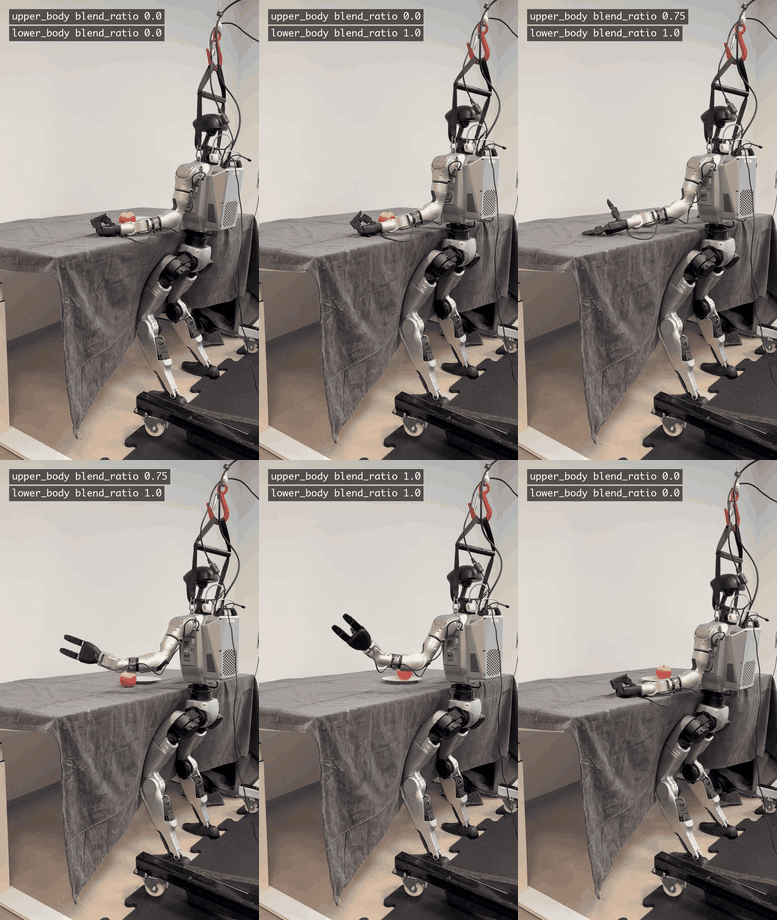
Deploying the fine-tuned policy. First, only the lower-body joints are enabled for balancing; then the upper-body joints are enabled to pick up the apple.#
Note
The bundled apple-to-plate policy targets a 60–70 % success rate. Its primary purpose is to demonstrate the GR00T fine-tuning workflow; it is not intended to maximize pick-and-place reliability out of the box. Actual success rates depend on scene setup (apple and plate placement, lighting etc.). Fine-tuning on your own data is expected to improve performance significantly.
Run this tutorial on a Jetson AGX Thor connected to the G1, either as an external system or as a Thor backpack.
Warning
Before launching, complete the host-level prerequisites (CUDA MPS
daemon, --ulimit rtprio=99) documented on
the package reference page.
Without them the AGILE controller cannot meet its real-time deadline and the robot will fall.
Activate the Isaac ROS environment and install the Isaac ROS deploy stack:
isaac-ros activate
Note
If your container was built with the gr00t_workflow Docker layer, you can skip past the
install steps to the setup_network.py command.
sudo apt-get update
sudo apt-get install -y ros-jazzy-isaac-ros-unitree-g1-gr00t
Then install the RealSense ROS package (the deploy launch loads the RealSense D435 composable node and expects the camera connected to the host):
sudo apt-get install -y \
    ros-jazzy-realsense2-camera \
    ros-jazzy-realsense2-camera-msgs
source /opt/ros/jazzy/setup.bash
Both realsense2-camera and realsense2-camera-msgs must be the
same version; install them together.
Verify that the robot is connected to the host machine. The result of
setup_network.py provides the robot IP address you can ping, for
example ping 192.168.123.161. If you cannot reach the robot IP address,
or the connection becomes unstable, re-run setup_network.py and repeat
the ping check.
${ISAAC_ROS_WS}/src/isaac_ros_robots/isaac_ros_robots_tools/scripts/setup_network.py
Warning
Clear the work area of persons and hazards. This application uses
separate safety controllers for the lower and upper body joints,
both defaulting to blend_ratio=0.0 so no control is active at
startup. Keep the commands that set blend_ratio back to 0.0
in your shell history so you can quickly disable control if
something goes wrong.
Before launching, position your robot in front of the table, similar to the video above. Then launch the deploy stack:
ros2 launch isaac_ros_unitree_g1_gr00t unitree_g1_gr00t_agile.launch.py \
    hardware_type:=real \
    network_interface:=<your_interface> \
    gr00t_leapp_yaml_path:=</path/to/leapp_export/your_policy.yaml>
Replace <your_interface> with the actual interface name (e.g.
eno1).
Replace </path/to/leapp_export/your_policy.yaml> with the path of
the LEAPP export YAML file you created in Export the Policy with LEAPP.
The LEAPP YAML and ONNX files must be in a container-visible
directory; see
Use Your Own Policy
for details.
You may leave this empty to use the default apple-to-plate fine-tune. To install the default policy assets, follow the model setup step in the Isaac ROS Unitree G1 GR00T package reference.
At startup, the robot moves its upper body to the configured default position. The blend ratios are initially set to 0, so the GR00T and AGILE policies are disabled. For the GR00T deployment we use a separate blend ratio for the lower and upper body.
First enable the AGILE locomotion policy by setting the lower body blend ratio to 1.0:
ros2 param set /safety_controller_lower_body blend_ratio 1.0
The robot should now be able to stand on its own.
Next, enable the upper body by setting the upper body blend ratio to 1.0. This will immediately give control to the GR00T policy and it will follow its fine-tuned task.
Warning
If you are testing your own fine-tuned policy for the first time, we recommend gradually
increasing blend_ratio rather than jumping directly to 1.0.
ros2 param set /safety_controller_upper_body blend_ratio 1.0
Note
Once the policy has finished picking and placing the apple, the arms may continue to move to an unexpected position. This is a known limitation of the current GR00T policy. Disable the upper-body controller as soon as the task is complete.
You can disable both policies again by setting the blend ratios to 0.0
ros2 param set /safety_controller_lower_body blend_ratio 0.0
ros2 param set /safety_controller_upper_body blend_ratio 0.0
Note
To repeatedly test the policy we recommend to reset the robot by setting the upper body blend ratio to 0.0. That is:
Setup the task, for example place the apple and plate in front of the robot on the table. Then enable the upper body blend ratio to 1.0 and let the robot perform the task.
ros2 param set /safety_controller_upper_body blend_ratio 1.0
After the task is completed, set the upper body blend ratio to 0.0 again to disable the policy.
Warning
When disabling the policy be sure to stand clear of the robot.
ros2 param set /safety_controller_upper_body blend_ratio 0.0
To repeat the task set the upper body blend ratio to 1.0 again.
See also
isaac_ros_unitree_g1_gr00t — host-level real-hardware prerequisites, build-from-source instructions, simulation smoke-test launch, full launch argument table, troubleshooting.