

Pick and Place with Isaac ROS Manipulation in Isaac Sim#
Overview#
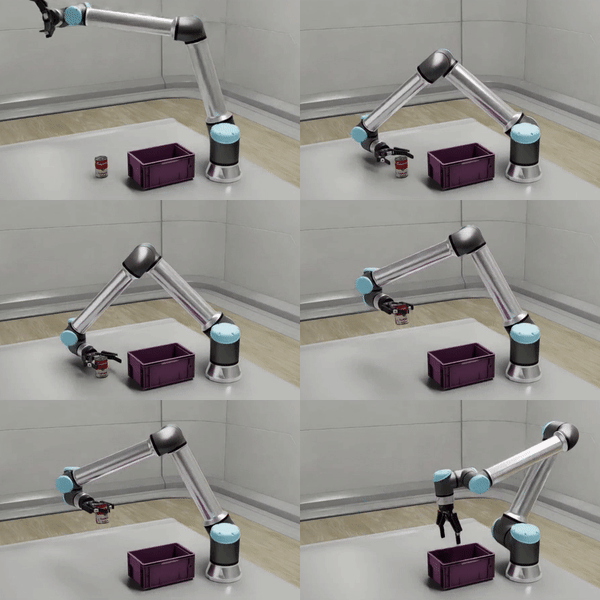
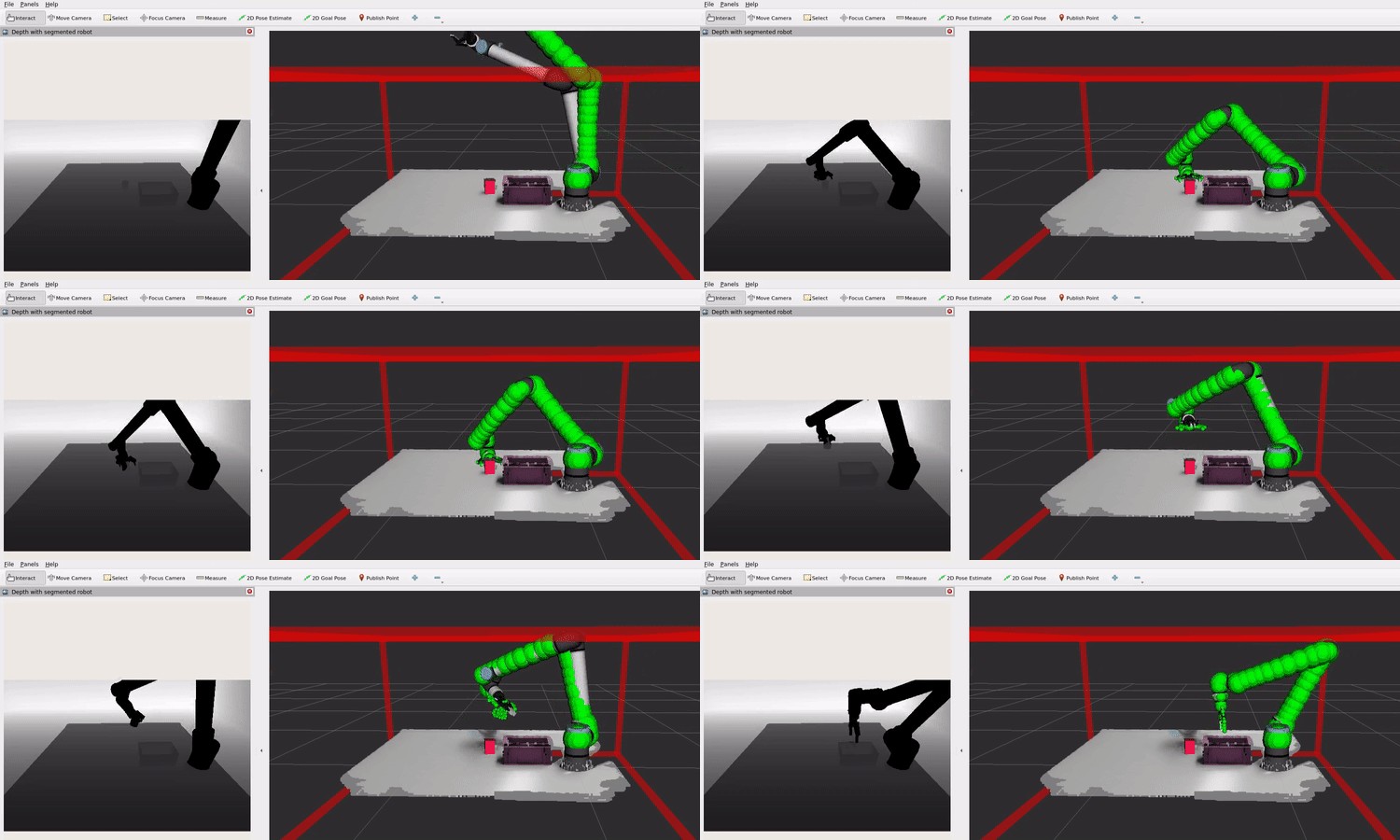
This tutorial demonstrates a complete pick and place workflow using Isaac ROS Manipulation in Isaac Sim. The workflow combines obstacle-aware planning, object perception, and grasping to enable the robot to pick up objects and place them at desired locations.
This tutorial leverages the cuMotion planner node provided by Isaac ROS cuMotion
We use rectified image streams from simulation and do not need to perform lens distortion and rectification that would need to be performed on a real robot.
We use perfect ground truth depth from the simulation which drives up accuracy and allows one to focus on the software stack in a perfect albeit unrealistic environment.
Warning
The obstacle avoidance behavior demonstrated in this tutorial is not a safety function and does not comply with any national or international functional safety standards. When testing obstacle avoidance behavior, do not use human limbs or other living entities.
The example uses RViz for visualization. RViz is the default visualization tool when Isaac ROS Manipulation is running on the same computer that is displaying the visualization. Foxglove is recommended when visualizing a reconstruction streamed from a remote machine. However, that is not officially supported for the sim workflows.
Prerequisites#
Follow the setup instructions in Setup for Simulated Robot with Isaac ROS Manipulation in Isaac Sim.
For improved performance in the scene execution, follow the instructions in Optimization for Physics Scene in Isaac ROS Manipulation.
Tutorial#
Prepare Configuration Files and Environment Variables#
Before editing any configuration files, copy them to the appropriate location and set up environment variables based on your installation method. This section handles all configuration file preparation (workflow config, behavior tree parameters, and blackboard parameters) and sets up environment variables for simplified command usage.
Binary installations have read-only configuration files in system directories. Copy all necessary files to a writable location:
# Create a directory for your custom configuration
mkdir -p ${ISAAC_ROS_WS}/isaac_ros_manipulation_config
Copy the workflow configuration file:
cp $(ros2 pkg prefix --share isaac_ros_manipulation_bringup)/params/sim_launch_params.yaml \
   ${ISAAC_ROS_WS}/isaac_ros_manipulation_config/sim_launch_params.yaml
Copy behavior tree and blackboard parameter files:
cp $(ros2 pkg prefix --share isaac_ros_manipulation_pick_and_place)/params/multi_object_pick_and_place_behavior_tree_params.yaml \
   ${ISAAC_ROS_WS}/isaac_ros_manipulation_config/multi_object_pick_and_place_behavior_tree_params.yaml

cp $(ros2 pkg prefix --share isaac_ros_manipulation_pick_and_place)/params/multi_object_pick_and_place_blackboard_params.yaml \
   ${ISAAC_ROS_WS}/isaac_ros_manipulation_config/multi_object_pick_and_place_blackboard_params.yaml
Files you’ll edit:
Workflow configuration:
${ISAAC_ROS_WS}/isaac_ros_manipulation_config/sim_launch_params.yaml
Behavior tree parameters:
${ISAAC_ROS_WS}/isaac_ros_manipulation_config/multi_object_pick_and_place_behavior_tree_params.yaml
Blackboard parameters:
${ISAAC_ROS_WS}/isaac_ros_manipulation_config/multi_object_pick_and_place_blackboard_params.yaml
Set up environment variables:
# Point to the directory containing your configuration files
export ISAAC_ROS_MANIPULATION_WORKFLOW_CONFIG_DIR="${ISAAC_ROS_WS}/isaac_ros_manipulation_config"
export ISAAC_ROS_MANIPULATION_PICK_AND_PLACE_CONFIG_DIR="${ISAAC_ROS_WS}/isaac_ros_manipulation_config"
When building from source with --symlink-install, you can edit configuration files directly in the source directories.
Files you’ll edit:
Workflow configuration:
${ISAAC_ROS_WS}/src/isaac_ros_manipulation/isaac_ros_manipulation_bringup/params/sim_launch_params.yaml
Behavior tree parameters:
${ISAAC_ROS_WS}/src/isaac_ros_manipulation/isaac_ros_manipulation_pick_and_place/params/multi_object_pick_and_place_behavior_tree_params.yaml
Blackboard parameters:
${ISAAC_ROS_WS}/src/isaac_ros_manipulation/isaac_ros_manipulation_pick_and_place/params/multi_object_pick_and_place_blackboard_params.yaml
Set up environment variables:
# Point to the source directories containing the configuration files
export ISAAC_ROS_MANIPULATION_WORKFLOW_CONFIG_DIR="${ISAAC_ROS_WS}/src/isaac_ros_manipulation/isaac_ros_manipulation_bringup/params"
export ISAAC_ROS_MANIPULATION_PICK_AND_PLACE_CONFIG_DIR="${ISAAC_ROS_WS}/src/isaac_ros_manipulation/isaac_ros_manipulation_pick_and_place/params"
Edit Workflow Configuration File#
Edit the workflow configuration file to work with Isaac Sim.
Reference Configuration File:
Open the
sim_launch_params.yamlfile and set the following parameters:workflow_type: PICK_AND_PLACE segmentation_type: NONE object_detection_type: RTDETR enable_nvblox: 'false' use_ground_truth_pose_in_sim: 'false'
Note
For parameter details and model combinations, refer to the Manipulation Workflow Configuration Guide.
Configure Objects and Workspace#
Edit the behavior tree and blackboard parameter files (prepared in Prepare Configuration Files and Environment Variables) to configure the objects your robot will manipulate and define workspace parameters.
Reference Configuration Files:
Modify the behavior tree parameter file:
interactive_marker:
   mesh_resource_uri: 'package://isaac_ros_manipulation_ur_robot_description/meshes/robotiq_2f_140_gripper.obj'
   reference_frame: 'base_link'
   end_effector_frame: 'gripper_frame'
   user_confirmation_timeout: 60.0

plan_to_grasp:
   time_dilation_factor: 0.6

pose_estimation:
   base_frame_id: 'base_link'
   camera_frame_id: 'front_stereo_camera_left' # for Isaac Sim
   workspace_bounds:
      diagonal: []

switch_controllers:
   arm:
      controllers_to_activate: ['scaled_joint_trajectory_controller']
      controllers_to_deactivate: []
      strictness: 4  # FORCE_AUTO
   tool:
      controllers_to_activate: []
      controllers_to_deactivate: []
      strictness: 4  # FORCE_AUTO
Modify the blackboard parameter file to update the grasp files for the objects in the simulation.
supported_objects:
   mac_and_cheese:
      class_id: '22'
      grasp_file_path: $(ros2 pkg prefix --share isaac_ros_manipulation_robot_description)/config/robotiq_2f_140_grasps_mac_and_cheese.yaml
      mesh_file_path: ${ISAAC_ROS_WS}/isaac_ros_assets/isaac_ros_foundationpose/Mac_and_cheese_0_1/Mac_and_cheese_0_1.obj

   soup_can:
      class_id: '3'
      grasp_file_path: $(ros2 pkg prefix --share isaac_ros_manipulation_robot_description)/config/robotiq_2f_140_grasps_soup_can.yaml
      mesh_file_path: ${ISAAC_ROS_WS}/isaac_ros_assets/isaac_ros_foundationpose/soup_can/soup_can.obj
Note
The example configurations are pre-configured for SyntheticaDETR v1.0.0 with specific class IDs: Mac and Cheese box ('22') and Soup can ('3'). If you’re using a different detection model or objects, you’ll need to update these class IDs to match your model’s output.
For detailed configuration instructions covering object setup, workspace locations, and system parameters, refer to the Pick and Place Configuration Guide.
Configuration Checklist
Verify these settings in your behavior tree and blackboard parameter files before launching:
Objects:
supported_objectsmatch scene objects with correctclass_idsand valid grasp/mesh file pathsWorkspace:
target_posesandhome_poseare safe and reachableMode:
0= single bin,1= multi-bin sortingDrop method: YAML defaults, action goal, or RViz marker correction
System: Action server names and
startup_server_timeout_secmatch your setup
Important
Configuration changes require restarting the orchestration system. The behavior tree loads these parameters at startup and does not dynamically reload configuration files during execution.
Tip
Testing Configuration Without Hardware: If you want to verify your configuration setup before proceeding to hardware, refer to the standalone quickstart in isaac_ros_manipulation_pick_and_place. This uses dummy servers to test that your behavior tree logic and configuration files work correctly.
Important
Set pose_estimation.camera_frame_id in the behavior tree parameters to match your camera. For Isaac Sim, use front_stereo_camera_left. See Pose Estimation Frame IDs in the Configuration Guide for all supported values.
Launch Isaac Sim#
Open Isaac Sim and load the scene:
https://omniverse-content-production.s3-us-west-2.amazonaws.com/Assets/Isaac/5.1/Isaac/Samples/ROS2/Scenario/isaac_manipulator_scene.usd
Tip
We recommend setting a
ROS_DOMAIN_IDviaexport ROS_DOMAIN_ID=<ID_NUMBER>for every new terminal where you run ROS commands, to avoid interference with other computers in the same network (ROS Guide).Hit Play in Isaac Sim to start the simulation.
Run Pick and Place#
The pick and place workflow uses Cyclone DDS instead of the default rmw_fastrtps_cpp.
Install Cyclone DDS (one-time setup):
sudo apt-get install -y ros-jazzy-rmw-cyclonedds-cpp
Open a new terminal and activate the Isaac ROS environment:
isaac-ros activateSet the Cyclone DDS environment variable (required in every terminal):
export RMW_IMPLEMENTATION=rmw_cyclonedds_cpp
Launch the pick and place example:
ros2 launch isaac_ros_manipulation_bringup workflows.launch.py \
   manipulator_workflow_config:=${ISAAC_ROS_MANIPULATION_WORKFLOW_CONFIG_DIR}/sim_launch_params.yaml
The launch command uses environment variables set in the Prepare Configuration Files and Environment Variables section to point to your configuration files.
Execute Pick and Place#
After you run the launch file, open a new terminal and activate the Isaac ROS environment:
isaac-ros activateSet the Cyclone DDS environment variable:
export RMW_IMPLEMENTATION=rmw_cyclonedds_cpp
Trigger the workflow with an action goal:
All objects to one location:
ros2 action send_goal --feedback /multi_object_pick_and_place isaac_ros_manipulation_interfaces/action/MultiObjectPickAndPlace \
  '{target_poses: {header: {frame_id: "base_link"}, poses: [{position: {x: -0.25, y: -0.35, z: 0.50}, orientation: {w: 0.017994, x: -0.677772, y: 0.734752, z: 0.020993}}]}, class_ids: [], mode: 0}'
Objects sorted by class:
ros2 action send_goal --feedback /multi_object_pick_and_place isaac_ros_manipulation_interfaces/action/MultiObjectPickAndPlace \
  '{target_poses: {header: {frame_id: "base_link"}, poses: [{position: {x: -0.25, y: -0.35, z: 0.50}, orientation: {w: 0.017994, x: -0.677772, y: 0.734752, z: 0.020993}}, {position: {x: -0.25, y: 0.40, z: 0.40}, orientation: {w: 0.017994, x: -0.677772, y: 0.734752, z: 0.020993}}]}, class_ids: ["22", "3"], mode: 1}'
Warning
Update these example poses with positions safe and reachable in your robot’s workspace.
Refer to API Reference for complete action interface documentation.
Use Custom Grasps (Optional)#
To test pick and place with custom grasps optimized for your objects and gripper, refer to the Grasp Authoring tutorial. This tutorial shows you how to use Isaac Sim’s Grasp Editor to create and configure custom grasp poses.
Troubleshooting#
Gripper State Issues#
Isaac Sim caches the last known joint state in its action graphs and pushes that in when Play is pressed.
If the gripper is in a bad state (for example, if it is in self-collision), open the gripper.
To later close the gripper, set the position to 0.623. You must have a launch file running to run the
following command:
ros2 action send_goal /robotiq_gripper_controller/gripper_cmd \
   control_msgs/action/GripperCommand "{command: {position: 0.0, max_effort: 0.0}}"
Next Steps#
Try the Object Following tutorial to track moving objects
Try the Gear Assembly tutorial for complex assembly tasks
Learn more about Isaac ROS Manipulation Reference Architecture