

Manipulation Workflow Configuration Guide#
This is a quick reference for configuring the manipulation workflow YAML files used with workflows.launch.py. For a complete parameters reference, refer to the Create Manipulator Configuration File section.
Note
Sample Configuration Files: You can find examples in the isaac_ros_manipulation_bringup package’s params directory. These sample files contain valid parameter combinations for different robot setups:
Required Parameters#
Note
Editing Configuration Files:
Binary (Debian) Installation: Configuration files are read-only. Copy reference files before editing.
Source Installation: Edit in place or copy to a separate location.
Refer to Configure Your Workflow in the Pick and Place Tutorial for complete copy-and-edit instructions.
These parameters must be explicitly set in your configuration file:
Parameter |
Options |
Description |
|---|---|---|
|
|
Defines the manipulation workflow to execute |
|
|
Selects camera driver and configuration |
Configuration Example#
# Required Parameters (defaults shown)
workflow_type: PICK_AND_PLACE
camera_type: REALSENSE
Optional Parameters#
Perception workflow#
Configure the perception workflow, which provides depth estimation and object detection, segmentation, and pose estimation capabilities. Defaults are provided but can be customized:
Parameter |
Options |
Default |
Description |
When to use |
|---|---|---|---|---|
|
|
|
Depth estimation method. Actual depth source varies by camera type and configuration. See Depth Configuration Compatibility for supported combinations. You must also set the corresponding engine file path — see Engine File Path Configuration below. |
Default |
|
|
|
Object detection network for locating objects in the scene |
|
|
|
|
Segmentation network for extracting object masks |
Leave at |
|
|
|
6DOF pose estimation network for determining object poses |
Default |
Configuration Example#
# Perception Workflow (optional - defaults shown)
object_detection_type: RTDETR
segmentation_type: NONE
pose_estimation_type: FOUNDATION_POSE
depth_type: ESS_FULL
Engine File Path Configuration#
Each DNN-based depth type has a dedicated engine file path parameter in the configuration file. The workflow automatically selects the correct engine based on the depth_type you choose. You only need to verify that the paths are correct for your platform during initial setup.
|
Configuration Parameter |
Default Engine File |
|---|---|---|
|
|
|
|
|
|
|
|
|
|
|
|
|
(none) |
Uses native RealSense depth |
|
(none) |
Uses simulation depth |
The sample configuration files include all engine paths pre-configured. To switch depth types, simply change the depth_type parameter:
# All engine paths are set once during initial setup.
# Only change the ``depth_type`` to switch between models.
depth_type: ESS_FULL

ess_full_engine_file_path: ${ISAAC_ROS_WS}/isaac_ros_assets/models/dnn_stereo_disparity/dnn_stereo_disparity_v4.1.0_onnx_trt10.13/ess.engine
ess_light_engine_file_path: ${ISAAC_ROS_WS}/isaac_ros_assets/models/dnn_stereo_disparity/dnn_stereo_disparity_v4.1.0_onnx_trt10.13/light_ess.engine
foundationstereo_low_res_engine_file_path: ${ISAAC_ROS_WS}/isaac_ros_assets/models/foundationstereo/deployable_foundation_stereo_small_v1.0/foundationstereo_320x736.engine
foundationstereo_high_res_engine_file_path: ${ISAAC_ROS_WS}/isaac_ros_assets/models/foundationstereo/deployable_foundation_stereo_small_v1.0/foundationstereo_576x960.engine
Note
Only the engine file for your chosen depth_type needs to be installed. The workflow validates the active engine path at launch and will report a clear error if the file is missing.
Important
FOUNDATION_STEREO_HIGH_RES requires 16 GB of GPU memory during TensorRT engine conversion, while FOUNDATION_STEREO_LOW_RES requires 8 GB. The model resolution is selected during model installation via the FOUNDATIONSTEREO_MODEL_RES environment variable.
Supported Model Combinations#
Not all model combinations are compatible. The following table lists valid combinations for the perception workflow:
Object Detection Type |
Segmentation Type |
Pose Estimation Type |
|---|---|---|
|
|
|
|
|
|
|
|
|
|
|
|
|
|
|
|
|
|
|
|
|
|
|
|
|
|
|
Depth Configuration Compatibility#
The actual depth source depends on your camera type and configuration. Each camera type supports different depth methods:
RealSense Cameras
Depth Type |
|
Actual Depth Source |
|---|---|---|
Any depth type |
|
Native RealSense depth (overrides |
|
|
ESS Full DNN depth |
|
|
ESS Light DNN depth |
|
|
Foundation Stereo DNN depth (320x736) |
|
|
Foundation Stereo DNN depth (576x960) |
|
Any value |
Simulation depth |
Isaac Sim Cameras
Supported Depth Type |
Actual Depth Source |
|---|---|
|
Simulation depth |
Note
Key Configuration Rules:
RealSense cameras have native depth capability. Set
enable_dnn_depth_in_realsense: falseto use native depth, ortrueto use DNN-based depth estimation.Isaac Sim cameras provide simulation depth directly and only support
ISAAC_SIMdepth type. Theenable_dnn_depth_in_realsenseparameter is ignored.When using RealSense with
enable_dnn_depth_in_realsense: false, thedepth_typesetting is overridden and native RealSense depth is used regardless.DNN-based depth methods (
ESS_FULL,ESS_LIGHT,FOUNDATION_STEREO_LOW_RES,FOUNDATION_STEREO_HIGH_RES) provide better quality but require additional computational resources.
Unsupported Combinations:
Isaac Sim cameras cannot use
ESS_FULL,ESS_LIGHT,FOUNDATION_STEREO_LOW_RES,FOUNDATION_STEREO_HIGH_RES, orREALSENSEdepth types
Note
Engine file paths. Each DNN-based depth type has a dedicated engine file parameter (ess_full_engine_file_path, ess_light_engine_file_path, foundationstereo_low_res_engine_file_path, foundationstereo_high_res_engine_file_path). The workflow automatically selects the correct engine based on depth_type. Verify that all engine paths are valid for your platform during initial setup. See Engine File Path Configuration for details.
Workspace Configuration#
Parameter |
Default |
Description |
|---|---|---|
|
None |
File path to a |
Configuration Example#
# Static Obstacles (for collision avoidance)
moveit_collision_objects_scene_file: /path/to/scene.scene
Creating a Static Planning Scene#
To create a .scene file for your workspace, use MoveIt’s RViz interface:
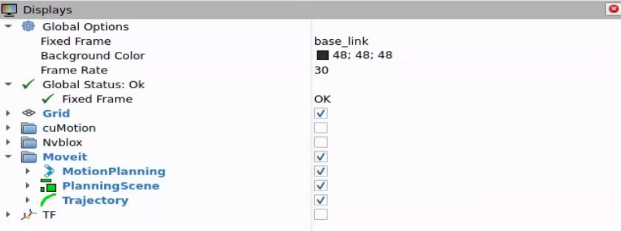
In the RViz window, click on Displays > MoveIt > Motion Planning. A new panel titled Motion Planning appears on the left side of the RViz window.
In the Scene Objects tab, add obstacles to represent your workspace. Supported geometric primitives are:
box,sphere, andcylinder.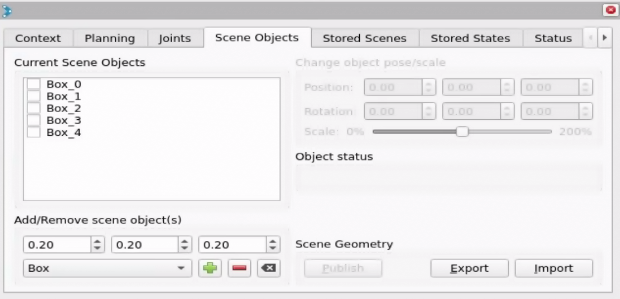
Export the scene file using the Export button, and set the path to the exported file in the
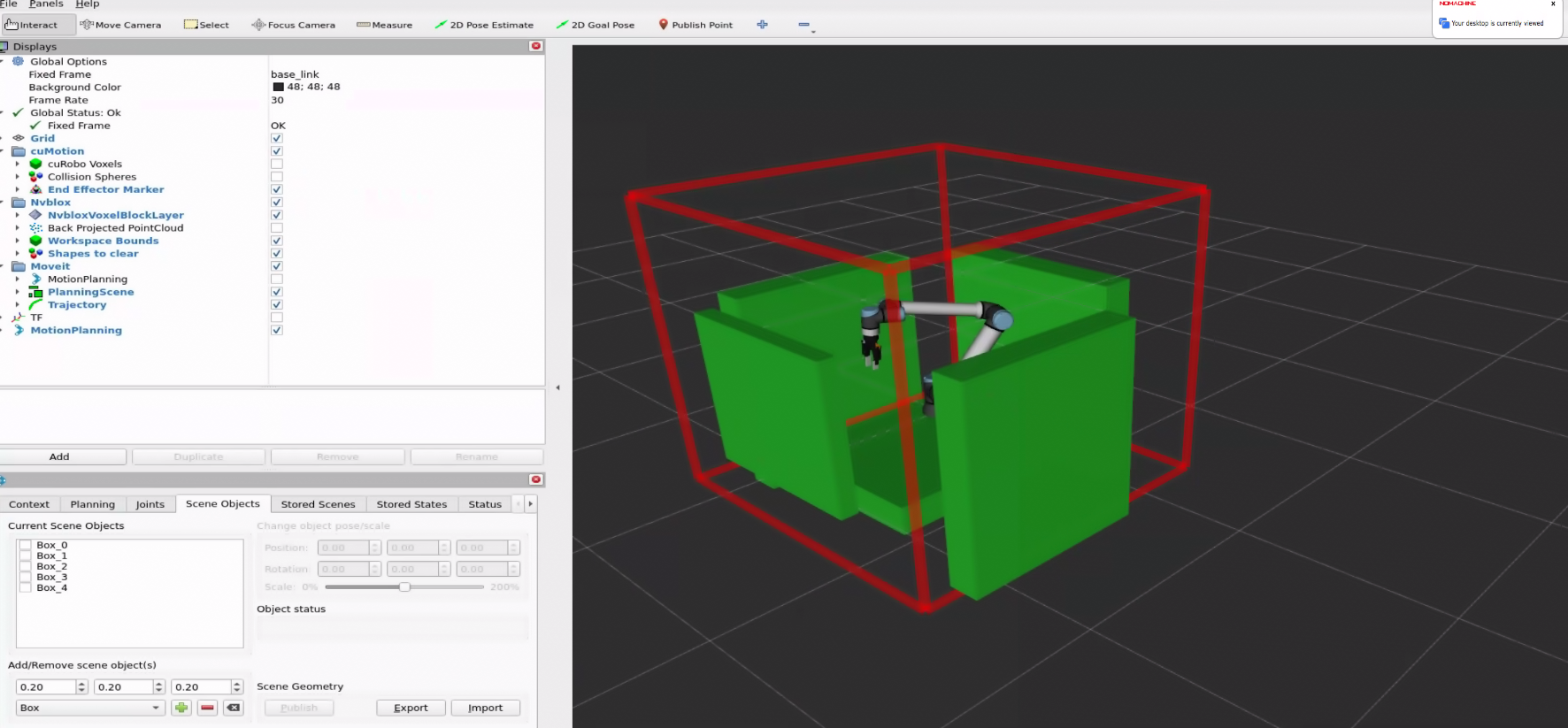
moveit_collision_objects_scene_fileparameter of your workflow configuration file.After the scene file is configured, the static planning scene loads automatically at launch after cuMotion is ready for planning queries.
Warning
Include any workspace obstacles not visible to cameras to prevent collisions.
Advanced Parameters#
These parameters are only needed in specific scenarios:
Parameter |
When Required |
Default |
Description |
|---|---|---|---|
|
For robot segmenter synchronization |
|
Synchronization threshold to sync joint states and depth images for robot segmenter to produce segmented depth. Small values prevent synchronization and large values cause segmented images that don’t accurately capture the robot’s state. |
|
To reduce system load or disable collision avoidance |
|
Enable/disable nvblox for 3D scene reconstruction and dynamic collision avoidance. Setting to |
|
For neural network-based depth estimation with RealSense cameras |
|
Enable DNN-based depth estimation for RealSense cameras. See Depth Configuration Compatibility for camera-specific behavior and supported combinations |
Configuration Example#
# Advanced Parameters
time_sync_slop: 0.1                   # Sync tolerance for joint states and depth images
enable_nvblox: false                  # Reduce system load
enable_dnn_depth_in_realsense: true   # Better depth quality for RealSense
Note
FoundationStereo Timing Consideration: FoundationStereo takes approximately 1.5 seconds per depth frame on Thor (FP32, 576x960); see the Comparing DNNs section. To synchronize depth images and joint states from the robot driver, use a time_sync_slop value close to 3 seconds for proper synchronization.
System Performance: Disabling enable_nvblox reduces computational load but eliminates dynamic collision avoidance and robot segmenter capabilities.
Usage#
ros2 launch isaac_ros_manipulation_bringup workflows.launch.py \
   manipulator_workflow_config:=/path/to/your/config.yaml
More Information#
isaac_ros_manipulation_bringup - Launch file parameter details