

Tutorial for Multi-camera Visual SLAM Using RealSense Cameras#
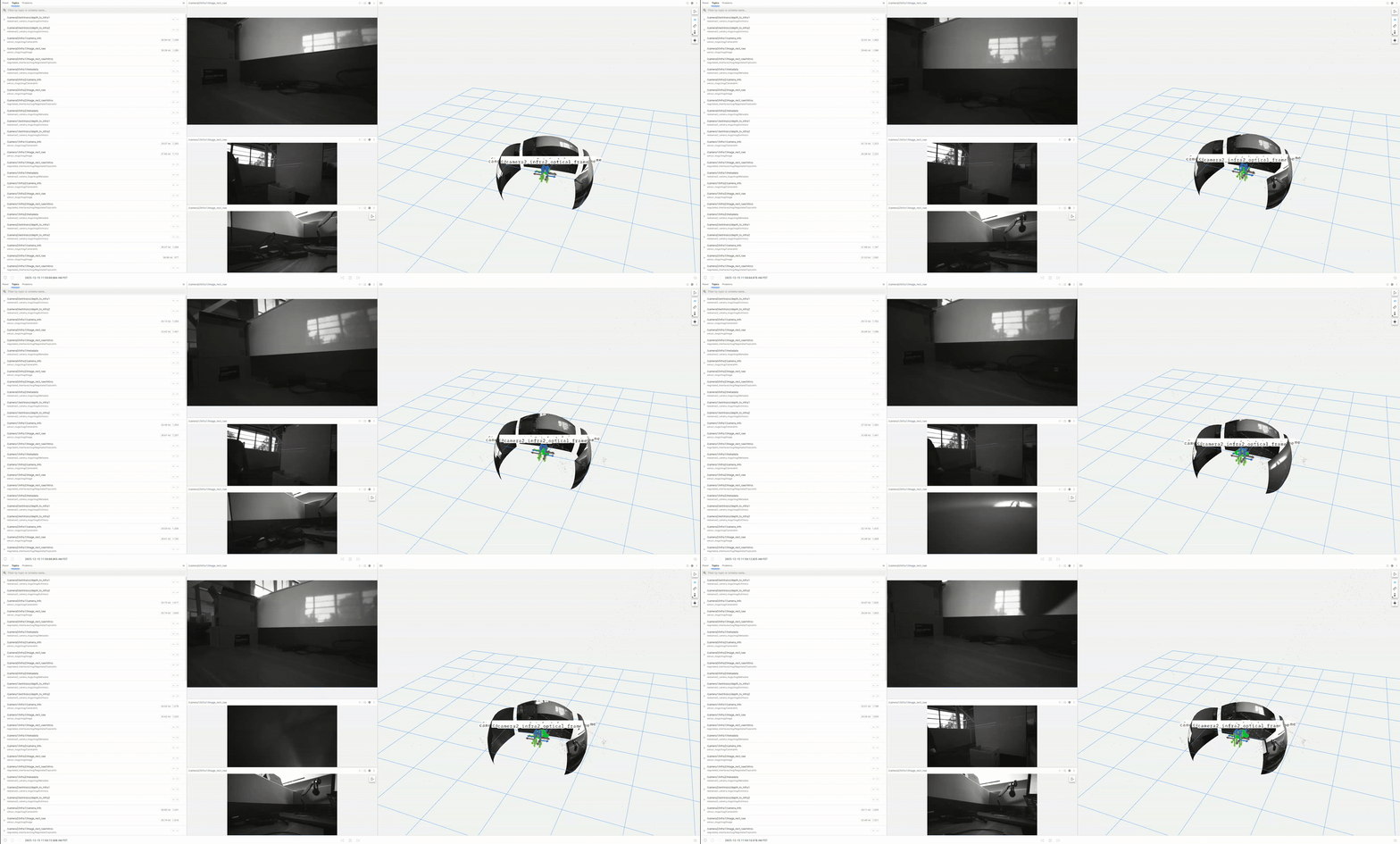
Overview#
This tutorial demonstrates how to set up multi-camera VSLAM with Isaac ROS Visual SLAM using multiple RealSense cameras with hardware synchronization.
Requirements#
Multiple identical RealSense cameras from the list of compatible camera models
All cameras are hardware synchronized
Cameras are mounted on a solid frame with known precise positions
Note
This tutorial provides instructions following RealSense hardware sync and Thor developer kit rig mounting guide, which will satisfy the requirements for this tutorial and provide mounting for up to three RealSense cameras.
Prerequisites#
Complete the RealSense setup tutorial and confirm cameras are functioning.
Set up hardware synchronization following the RealSense hardware sync and Thor rig mounting guide. This includes:
Assembling the inter-camera sync circuit for hardware synchronization
Mounting cameras on the Thor DevKit RealSense rig
If you would like to setup your own custom mounting, you need to create a URDF file for your own camera configuration.
Identify your RealSense camera serial numbers and determine the front, left, and right.
rs-enumerate-devices -SExample output:
Device Name                   Serial Number       Firmware Version
Intel RealSense D455          123456789123        5.16.0.1
Intel RealSense D455          123456789124        5.16.0.1
Intel RealSense D455          123456789125        5.16.0.1
Add the camera serial numbers to the multi_realsense.yaml config file and specify the master device before building the isaac_ros_cuvslam package.
Note
If using the Thor DevKit RealSense rig and URDF file, the configuration for the three cameras assumes the front camera is named
camera0, the left camera iscamera1, and the right camera iscamera2.Complete the isaac_ros_cuvslam (cuVSLAM) quickstart.
Clone the Sensor Mounting Rig repository for the Thor DevKit RealSense rig description package:
cd ${ISAAC_ROS_WS}/src
git clone -b release-5.0 https://github.com/NVIDIA-ISAAC-ROS/sensor_mounting_rig.git sensor_mounting_rig
Tutorial Walkthrough - Multi-camera Visual SLAM Execution#
Open a terminal and activate the Isaac ROS environment:
isaac-ros activateBuild the required packages:
cd ${ISAAC_ROS_WS}
colcon build --packages-up-to isaac_ros_cuvslam thor_devkit_realsense_rig_description
source install/setup.bash
[Terminal 1] Launch the cameras and visual SLAM. This also launches the robot description which publishes the TF tree with the spatial relationship between cameras.
Use the serial numbers identified in the prerequisites, in order of front, left, right cameras. The first camera will be configured as the hardware sync master and the remaining cameras as slaves.
For D455 cameras (default):
ros2 launch isaac_ros_cuvslam isaac_ros_visual_slam_multi_realsense.launch.py
For D435i cameras:
ros2 launch isaac_ros_cuvslam isaac_ros_visual_slam_multi_realsense.launch.py \
    camera_model:=d435
[Terminal 2] In a new terminal, activate the Isaac ROS environment and verify the system is running by checking that topics are being published:
isaac-ros activate
ros2 topic list
Verify that you see topics like:
Expected output:
/camera0/extrinsics/depth_to_infra1
/camera0/extrinsics/depth_to_infra2
/camera0/infra1/camera_info
/camera0/infra1/image_rect_raw
/camera0/infra1/image_rect_raw/compressed
/camera0/infra1/image_rect_raw/compressedDepth
/camera0/infra1/image_rect_raw/nitros
/camera0/infra1/image_rect_raw/theora
/camera0/infra1/metadata
/camera0/infra2/camera_info
/camera0/infra2/image_rect_raw
/camera0/infra2/image_rect_raw/compressed
/camera0/infra2/image_rect_raw/compressedDepth
/camera0/infra2/image_rect_raw/nitros
/camera0/infra2/image_rect_raw/theora
/camera0/infra2/metadata
/camera1/extrinsics/depth_to_infra1
/camera1/extrinsics/depth_to_infra2
/camera1/infra1/camera_info
/camera1/infra1/image_rect_raw
/camera1/infra1/image_rect_raw/compressed
/camera1/infra1/image_rect_raw/compressedDepth
/camera1/infra1/image_rect_raw/nitros
/camera1/infra1/image_rect_raw/theora
/camera1/infra1/metadata
/camera1/infra2/camera_info
/camera1/infra2/image_rect_raw
/camera1/infra2/image_rect_raw/compressed
/camera1/infra2/image_rect_raw/compressedDepth
/camera1/infra2/image_rect_raw/nitros
/camera1/infra2/image_rect_raw/theora
/camera1/infra2/metadata
/camera2/extrinsics/depth_to_infra1
/camera2/extrinsics/depth_to_infra2
/camera2/infra1/camera_info
/camera2/infra1/image_rect_raw
/camera2/infra1/image_rect_raw/compressed
/camera2/infra1/image_rect_raw/compressedDepth
/camera2/infra1/image_rect_raw/nitros
/camera2/infra1/image_rect_raw/theora
/camera2/infra1/metadata
/camera2/infra2/camera_info
/camera2/infra2/image_rect_raw
/camera2/infra2/image_rect_raw/compressed
/camera2/infra2/image_rect_raw/compressedDepth
/camera2/infra2/image_rect_raw/nitros
/camera2/infra2/image_rect_raw/theora
/camera2/infra2/metadata
/diagnostics
/joint_states
/parameter_events
/robot_description
/rosout
/tf
/tf_static
/visual_slam/initial_pose
/visual_slam/status
/visual_slam/tracking/odometry
/visual_slam/tracking/slam_path
/visual_slam/tracking/vo_path
/visual_slam/tracking/vo_pose
/visual_slam/tracking/vo_pose_covariance
/visual_slam/vis/gravity
/visual_slam/vis/landmarks_cloud
/visual_slam/vis/localizer
/visual_slam/vis/localizer_loop_closure_cloud
/visual_slam/vis/localizer_map_cloud
/visual_slam/vis/localizer_observations_cloud
/visual_slam/vis/loop_closure_cloud
/visual_slam/vis/observations_cloud
/visual_slam/vis/pose_graph_edges
/visual_slam/vis/pose_graph_edges2
/visual_slam/vis/pose_graph_nodes
/visual_slam/vis/slam_odometry
/visual_slam/vis/velocity
Verify the output rates for a sanity check:
ros2 topic hz /visual_slam/tracking/odometry --window 20
Verify that you receive output at approximately 30 Hz (matching the camera frame rate):
average rate: 29.964
   min: 0.032s max: 0.034s std dev: 0.00054s window: 20
average rate: 30.038
   min: 0.032s max: 0.035s std dev: 0.00082s window: 20
average rate: 30.029
   min: 0.032s max: 0.034s std dev: 0.00053s window: 20
Tutorial Walkthrough - Visualizing the Outputs#
Note
Visualization can impact the performance of Visual SLAM. Images and landmark visualization require significant bandwidth. Use visualization primarily for debugging and demonstration purposes.
Visualization with Foxglove Studio#
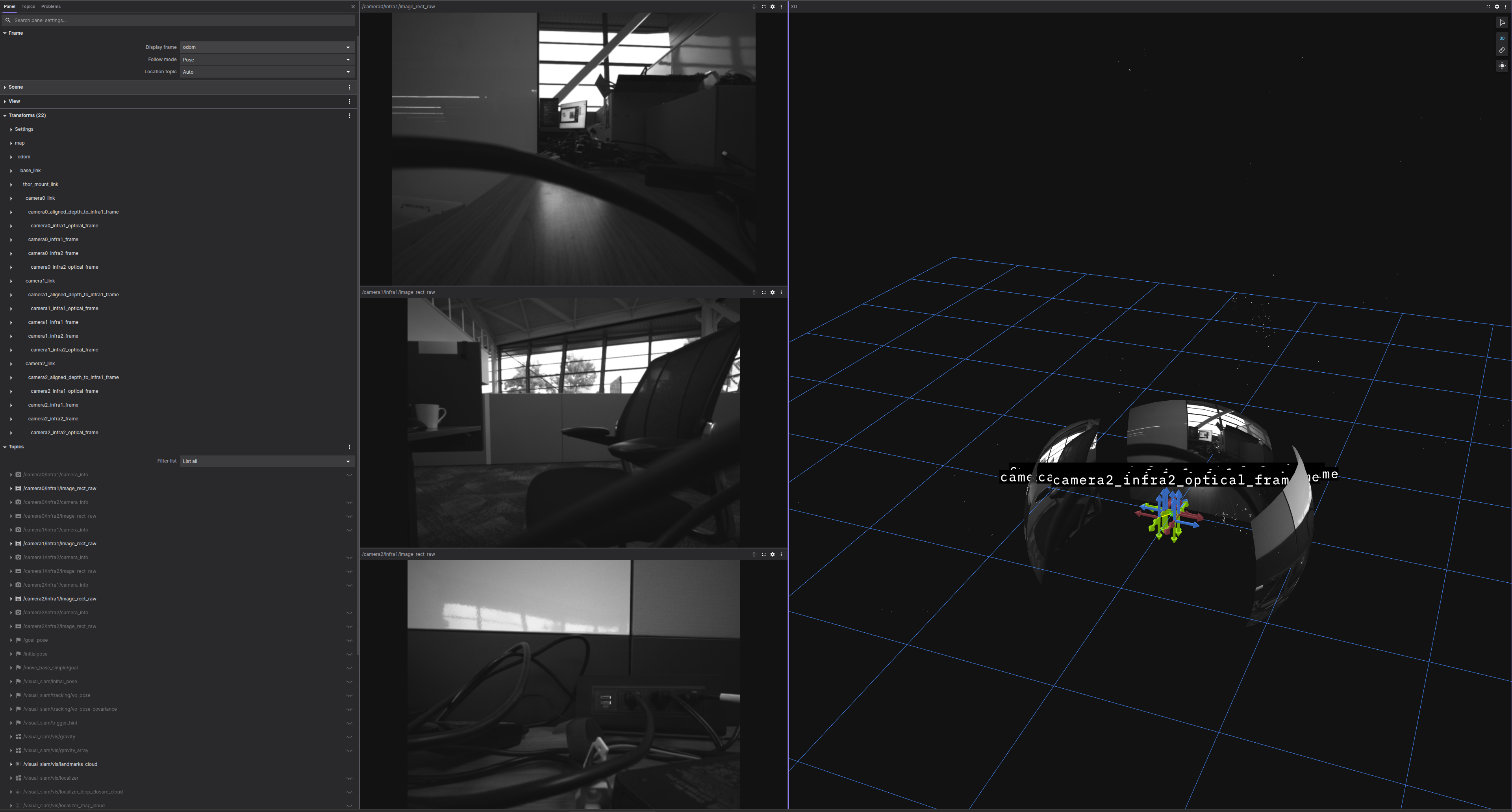
Complete the foxglove setup guide.
In Foxglove Studio, open the layout file from isaac_ros_visual_slam.
Validate that you can see:
3D visualization of the robot TF tree
Live camera images from
camera0,camera1, andcamera2Visual odometry path
Feature observations (colored points)
SLAM landmarks
Verify that you receive a visualization similar to the following:
Visualization with RViz2#
In a new terminal, activate the Isaac ROS environment:
isaac-ros activateInstall RViz:
sudo apt-get install -y ros-lyrical-rviz2
source /opt/ros/lyrical/setup.bash
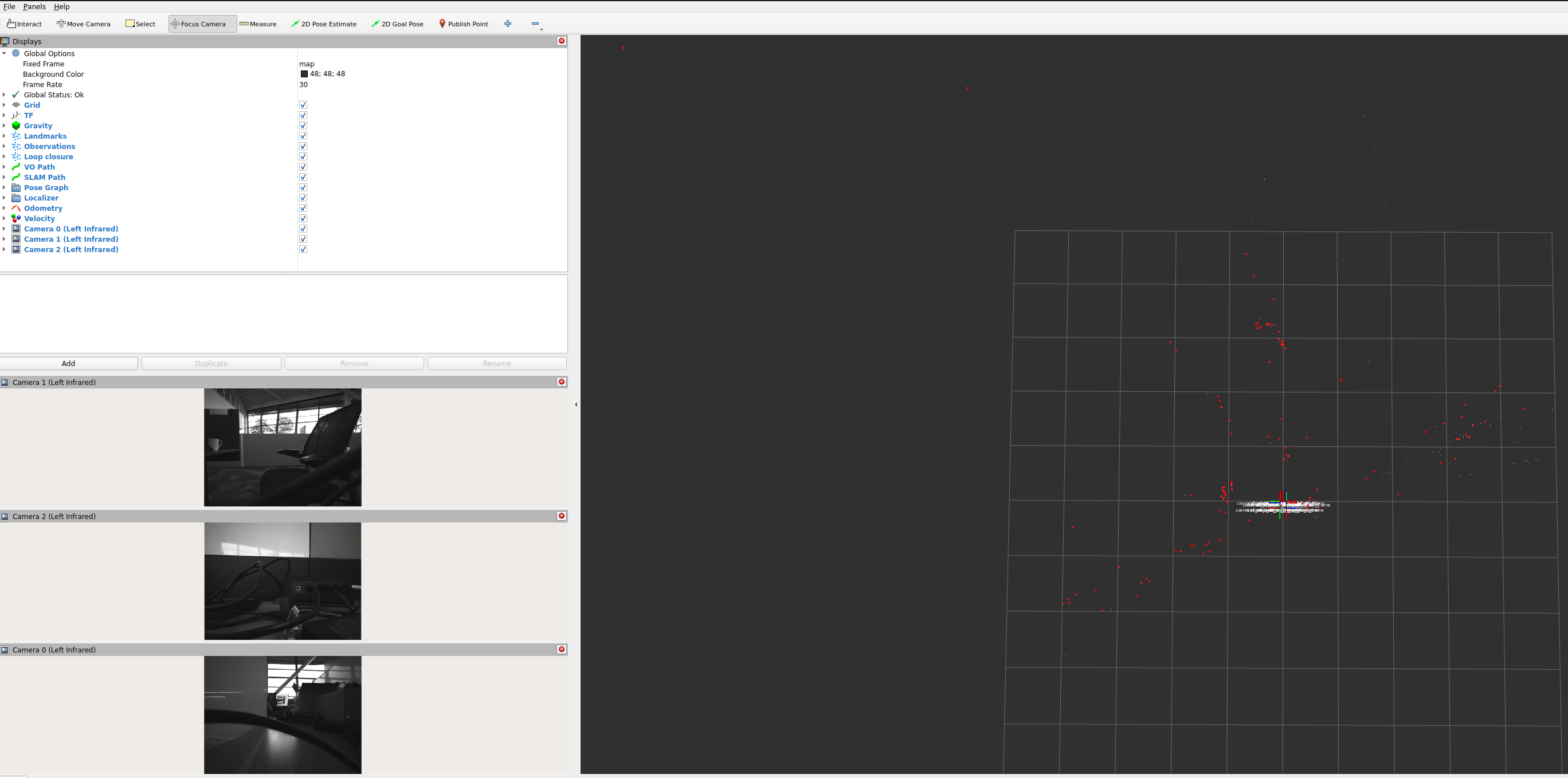
Open RViz2 with the multi-RealSense configuration:
source ${ISAAC_ROS_WS}/install/setup.bash
rviz2 -d $(ros2 pkg prefix isaac_ros_cuvslam --share)/rviz/multi_realsense.cfg.rviz
Verify you can see:
Robot frame tree with all camera frames
Camera infrared images
Visual odometry and SLAM paths
Feature observations and landmarks
Verify that you receive a visualization similar to the following:
SLAM Visualization#
Note
Isaac ROS Visual SLAM can publish various SLAM-related topics. During Loop Closure events,
it publishes sparse visual features to the /visual_slam/vis/loop_closure_cloud topic and
the poses on the internal cuVSLAM map to the /visual_slam/vis/pose_graph_edges2 topic.
These visualization features are enabled by default in the launch file with:
enable_slam_visualization: trueenable_landmarks_view: trueenable_observations_view: true
When the robot revisits a previously mapped area, verify that you receive:
Red points indicating feature correspondences between current images and stored map features
Pose graph edges showing the connections between keyframes
Loop closure events that help reduce drift
Troubleshooting#
Camera Reliability Issues#
RealSense cameras might enter an error state and become unable to stream data and might even cause the driver to crash. This is a known issue with RealSense cameras and is not related to Isaac ROS applications. To recover, try the following:
Power-cycle the cameras
If the issue persists, restart the host computer
Hardware Synchronization Issues#
If you see error messages such as the ones below, you might have synchronization issues with your slave cameras:
[component_container_mt-1] [WARN] [1761166871.733246924] [camera2]: XXX Hardware Notification:Right MIPI error,1.76117e+12,Error,Hardware Error
[component_container_mt-1] [WARN] [1761166871.733380100] [camera2]: Hardware Notification:Right MIPI error,1.76117e+12,Error,Hardware Error
To investigate, check the following:
Check that the hardware sync circuit is correctly wired with noise minimization. Refer to the hardware sync guide for details.
Verify the inter-camera sync signal with an oscilloscope
Ensure the first camera (master) is producing the sync signal correctly
For more RealSense camera troubleshooting:
Search
librealsenseSDK issues