

Tutorial for Multi-Object Pick and Place from Isaac Cloud Service#
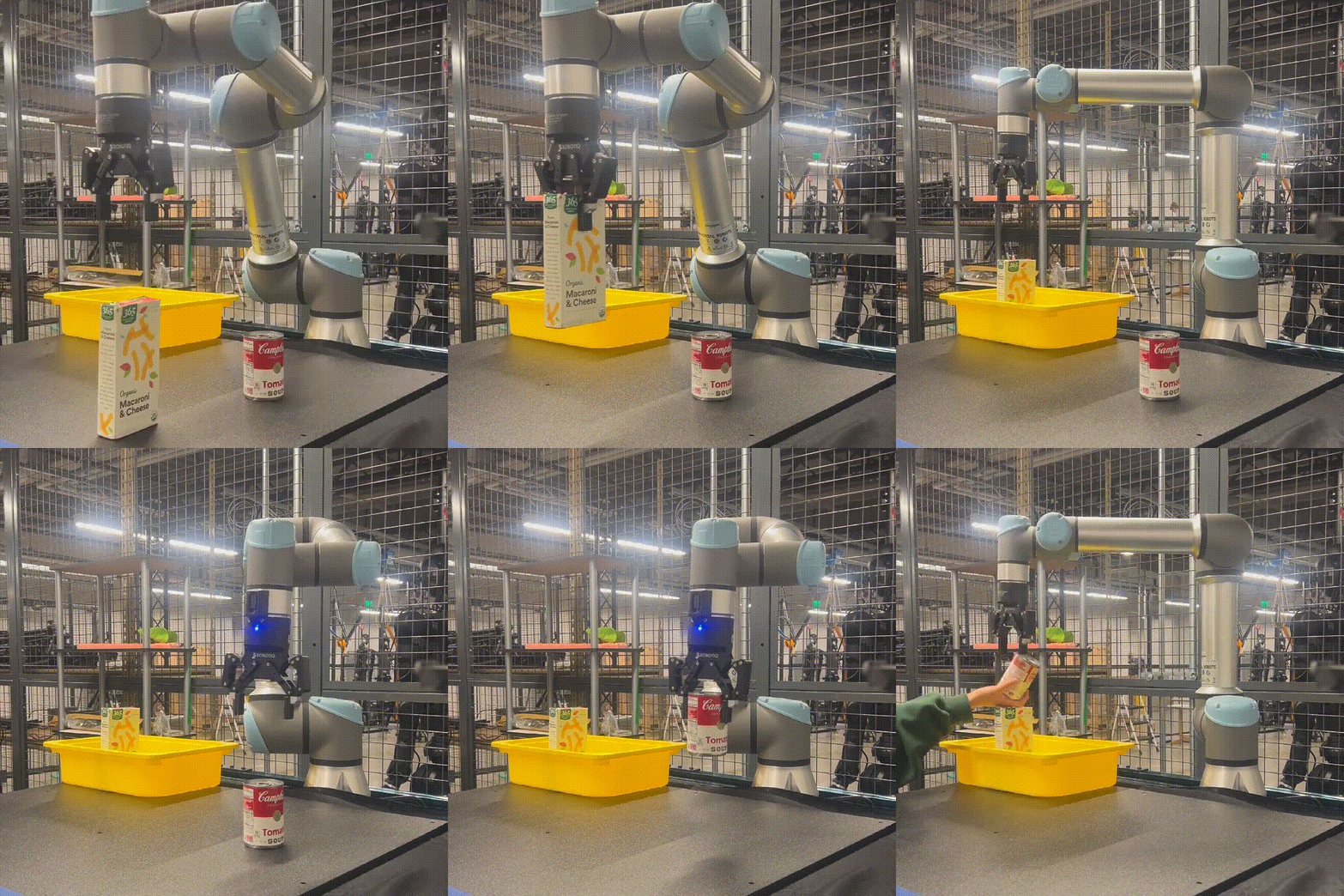
Overview#
This tutorial walks through the process of triggering pick and place workflow from Isaac cloud service using Mission Dispatch APIs. In this tutorial, you will setup Mission Dispatch on one x86_64 machine, launch mission client along with other ROS 2 nodes on the robot and trigger pick and place workflow by cloud APIs.
Prerequisites#
Complete the pick and place tutorial for pick and place using ROS 2 action servers first.
If you are using Isaac Sim, complete the setup steps in the Isaac Sim tutorials, then follow the pick and place tutorial for Isaac Sim:
Set Up Development Environment
Build the Code
Set Up Perception Deep Learning Models
If you have a RealSense manipulator, complete all sections except “Run Pick and Place with Isaac Sim Platform.”
Follow the setup instructions in Setup Hardware and Software for Real Robot with Isaac ROS Manipulation.
Tutorial Walkthrough#
Setup Mission Dispatch#
Start MQTT broker on the x86_64 machine.
The MQTT broker is used for communication between the Mission Dispatch and the robots. There are many ways to run an MQTT broker, including as a system daemon, a standalone application, or a Docker container. The following example uses mosquitto as the MQTT broker.
Create a file
~/mosquitto.shwith the following contents outside the container:
CONFIG_FILE=/mosquitto.conf
if [ $# != 2 ] ; then
    echo "usage: $0 <tcp_port> <websocket_port>"
    exit 1
fi
PORT=$1
PORT_WEBSOCKET=$2
echo "allow_anonymous true" >> $CONFIG_FILE
echo "listener $PORT 0.0.0.0" >> $CONFIG_FILE
echo "listener $PORT_WEBSOCKET" >> $CONFIG_FILE
echo "protocol websockets" >> $CONFIG_FILE
mosquitto -c $CONFIG_FILE
Run the command outside the container:
docker run -it --network host -v ~/mosquitto.sh:/mosquitto.sh -d eclipse-mosquitto:latest sh mosquitto.sh 1883 9001
Start Mission Dispatch with Docker.
Set the following environment variable:
export POSTGRES_PASSWORD=<Any password>
Start the Postgres database by running the following:
docker run --rm --name postgres \
   --network host \
   -p 5432:5432 \
   -e POSTGRES_USER=postgres \
   -e POSTGRES_PASSWORD \
   -e POSTGRES_DB=mission \
  -d postgres:14.5
Start the API and database server with the official Docker container.
docker run -it --network host nvcr.io/nvidia/isaac/mission-database:4.3.0-amd64
docker run -it --network host nvcr.io/nvidia/isaac/mission-database:4.3.0-arm64
Start the mission dispatch server with the official docker container.
docker run -it --network host nvcr.io/nvidia/isaac/mission-dispatch:4.3.0-amd64
docker run -it --network host nvcr.io/nvidia/isaac/mission-dispatch:4.3.0-arm64
Read this tutorial for more deployment options for Mission Dispatch.
Open
http://localhost:5000/docsin a web browser.
Launch ROS 2 Nodes#
Complete the following steps on the robot.
Complete Set Up Development Environment and Build isaac_ros_mission_client to build the packages.
Run the following launch files within the container to spin up
mission_client:ros2 launch isaac_ros_vda5050_client_bringup isaac_ros_vda5050_client.launch.py \ robot_type:=MANIPULATOR \ serial_number:=arm01 \ mqtt_host_name:=<mission_dispatch_ip>
Complete the required sections in the pick and place tutorial or the pick and place tutorial for Isaac Sim first, as described in the overview section above.
Run the following command to verify that the Isaac ROS Manipulation is working correctly:
export ENABLE_MANIPULATOR_TESTING=on_robot  # use isaac_sim if running on Isaac Sim
export ISAAC_ROS_MANIPULATION_TEST_CONFIG=<config_file_path_for_your_robot>
python3 -m pytest ${ISAAC_ROS_WS}/src/isaac_ros_manipulation/isaac_ros_manipulation_bringup/test
Note
You can also use
colcon test --packages-select isaac_ros_manipulation_bringupto run the tests. However,pytesthas a better output and makes it easier to view status and progress of the tests. If these tests fail, refer to Isaac ROS Manipulation Testing Guide for more information. It is recommended to run the tests manually usinglaunch_testand then manually inspecting the results.Launch pick and place servers:
Open a new terminal inside the container and run:
cd ${ISAAC_ROS_WS} && \
   source install/setup.bash
Change the
camera_typetoREALSENSEin the configuration file before launching this workflow.
ros2 launch isaac_ros_manipulation_bringup workflows.launch.py \
    manipulator_workflow_config:=$(ros2 pkg prefix --share isaac_ros_manipulation_bringup)/params/ur5e_robotiq_85_mac_and_cheese.yaml
Note
This tutorial was validated using
ur_type: ur5e,ur_type: ur10ewith gripper typesrobotiq_2f_140androbotiq_2f_85. These values may be changed in the workflow configuration file to select between supported robots and grippers.Open Isaac Sim and load the scene below and hit Play.
https://omniverse-content-production.s3-us-west-2.amazonaws.com/Assets/Isaac/5.1/Isaac/Samples/ROS2/Scenario/isaac_manipulator_scene.usd
Install Cyclone DDS for more reliable real-time communication (one-time setup):
sudo apt-get install -y ros-jazzy-rmw-cyclonedds-cpp
Set the Cyclone DDS environment variable (required in every terminal):
export RMW_IMPLEMENTATION=rmw_cyclonedds_cpp
Inside the container, change
workflow_typein the configuration file toPICK_AND_PLACE, and run:ros2 launch isaac_ros_manipulation_bringup workflows.launch.py \ manipulator_workflow_config:=$(ros2 pkg prefix --share isaac_ros_manipulation_bringup)/params/sim_launch_params.yaml
The
manipulator_workflow_configparameter points to the manipulator configuration file. Refer to Create Manipulator Configuration File section.Object attachment supports three object types:
CUSTOM_MESH,CUBOID, andSPHERE. We recommend using theCUSTOM_MESHapproach for the most accurate collision representation. Configure the object shape asCUSTOM_MESHand provide the mesh file path. Set the scale to[1.0, 1.0, 1.0]to preserve the original mesh dimensions. Note that detailed meshes generate a higher number of collision spheres, which may result in slower planning queries.Alternatively,
CUBOIDcan be used when mesh files are not available. Set the scale to dimensions [x, y, z] in meters large enough to encompass all object types you are working with, so that a single cuboid size can contain the geometry of every object.SPHEREuses a single collision sphere to represent the attached object. Set the scale as[diameter, diameter, diameter]in meters; the largest component is used as the sphere diameter. For example, a scale of[0.1, 0.1, 0.1]produces a sphere with a 0.1 m diameter. This option is useful for simple spherical objects or when a quick approximation is sufficient, as it requires fewer collision checks thanCUSTOM_MESHorCUBOID.If the gripper is in a bad state, that is, it is moving in on it self and causing the robot movement to self collide, you need to open the gripper as Isaac Sim caches the last known joint state in it’s action graphs and pushes that in when you hit Play. If you need to close the gripper, just make position
0.623.You must have the launch file running to run this command.
ros2 action send_goal /robotiq_gripper_controller/gripper_cmd \
    control_msgs/action/GripperCommand "{command: {position: 0.0, max_effort: 0.0}}"
Trigger Pick and Place Workflow#
Open
http://localhost:5000/docsin a web browser.Use the
POST /robotendpoint to create robot with namearm01.{ "labels": [], "heartbeat_timeout": 30, "name": "arm01" }
When using the interactive documentation page, the default value for the the robot object
namein thespecis ‘string’, you must change it from ‘string’ to another name that has more meaning, like ‘arm01’. Delete theprefixentry as shown in the video.Trigger pick and place using
POST /missionendpoint.{ "robot": "arm01", "mission_tree": [ { "name": "pick_place", "parent": "root", "action": { "action_type": "multi_object_pick_and_place", "action_parameters": { "mode": "SINGLE_BIN", "class_ids": "", "target_poses": "{\"frame_id\": \"base_link\", \"poses\": [{\"position\": {\"x\": -0.25, \"y\": 0.45, \"z\": 0.50}, \"orientation\": {\"x\": -0.678, \"y\": 0.735, \"z\": 0.021, \"w\": 0.018}}]}" } } } ], "timeout": 300, "needs_canceled": false }
Note
modecan beSINGLE_BINorMULTI_BIN.class_idsis a string of comma separated class IDs.target_posesis a string serialized JSON ofgeometry_msgs/PoseArray.