Tutorial for Isaac ROS Visual SLAM with Segmentation Masks#
Overview#
This tutorial walks you through setting up Isaac ROS Visual SLAM for stereo camera pose tracking and Image Segmentation for segmenting people in an image using TensorRT
Note
Isaac ROS Visual SLAM supports segmentation masks corresponding to the primary camera (typically the left camera in a stereo setup) as input. These masks allow to exclude visual features from consideration when tracking the pose of a stereo camera. This functionality is particularly useful for disregarding people using Segformer
Source code available on GitHub.
or other dynamic objects using SAMSource code available on GitHub.
.Tutorial Walkthrough - Stereo Visual SLAM Execution with People Segmentation#
Complete the RealSense setup tutorial.
Complete the Isaac ROS Visual Slam quickstart.
Complete the Image Segmentation quickstart up until running launch file step 3 for RealSense Camera tab.
[Terminal 1] Open a new terminal and activate the Isaac ROS environment:
isaac-ros activate
[Terminal 1] Inside the running container, build and source the workspace:
cd ${ISAAC_ROS_WS}
ros2 launch isaac_ros_visual_slam isaac_ros_visual_slam_realsense_mask.launch.py engine_file_path:=${ISAAC_ROS_WS}/isaac_ros_assets/models/triton/peoplesemsegformer/1/model.plan
Important
As shipped, this launch file sends the infrared stream to the DNN image encoder.
The infrared stream is single-channel mono8, but PeopleSemSegFormer expects
three-channel rgb8 input, so the encoder stops with a “Fatal assertion error”
and Visual SLAM never receives a segmentation mask. This is a known issue and will
be fixed in a future release.
To work around the issue, run segmentation on the color camera. Edit
${ISAAC_ROS_WS}/src/isaac_ros_visual_slam/isaac_ros_cuvslam/launch/isaac_ros_visual_slam_realsense_mask.launch.py
and change the following arguments of encoder_node_launch:
'input_encoding': 'rgb8',
'image_input_topic': '/camera/color/image_raw',
'camera_info_input_topic': '/camera/color/camera_info',
Then add the network output layout to the parameters of
segformer_decoder_node. Without it, the decoder reads the 1x1x512x512
network output as 512 channels and discards every frame:
'data_format': 'NCHW',
If you did not build the workspace with --symlink-install, rebuild
isaac_ros_cuvslam before you launch the pipeline again.
Note
For Jetson Thor with a RealSense D435 camera, the launch file uses 15 FPS camera streams and a 70 ms image jitter threshold. This configuration keeps the infrared images and segmentation masks synchronized so Visual SLAM continues to publish odometry.
Tutorial Walkthrough - Visualizing the Outputs#
Note
Images and landmarks visualization may impact the performance of Visual Odometry. Use visualization
for debugging and demonstration purposes only. To enable landmark visualization, set the following parameters
to True in the launch file: enable_slam_visualization, enable_landmarks_view, enable_observations_view
Visualization with Foxglove Studio#
Note
These examples will stream the camera images in their full resolution to Foxglove Studio. This requires a substantial amount of bandwidth and is only done here for exemplary purposes. Most likely the image stream will be fairly choppy due to the large bandwidth.
Complete the foxglove setup guide.
In Foxglove Studio open the
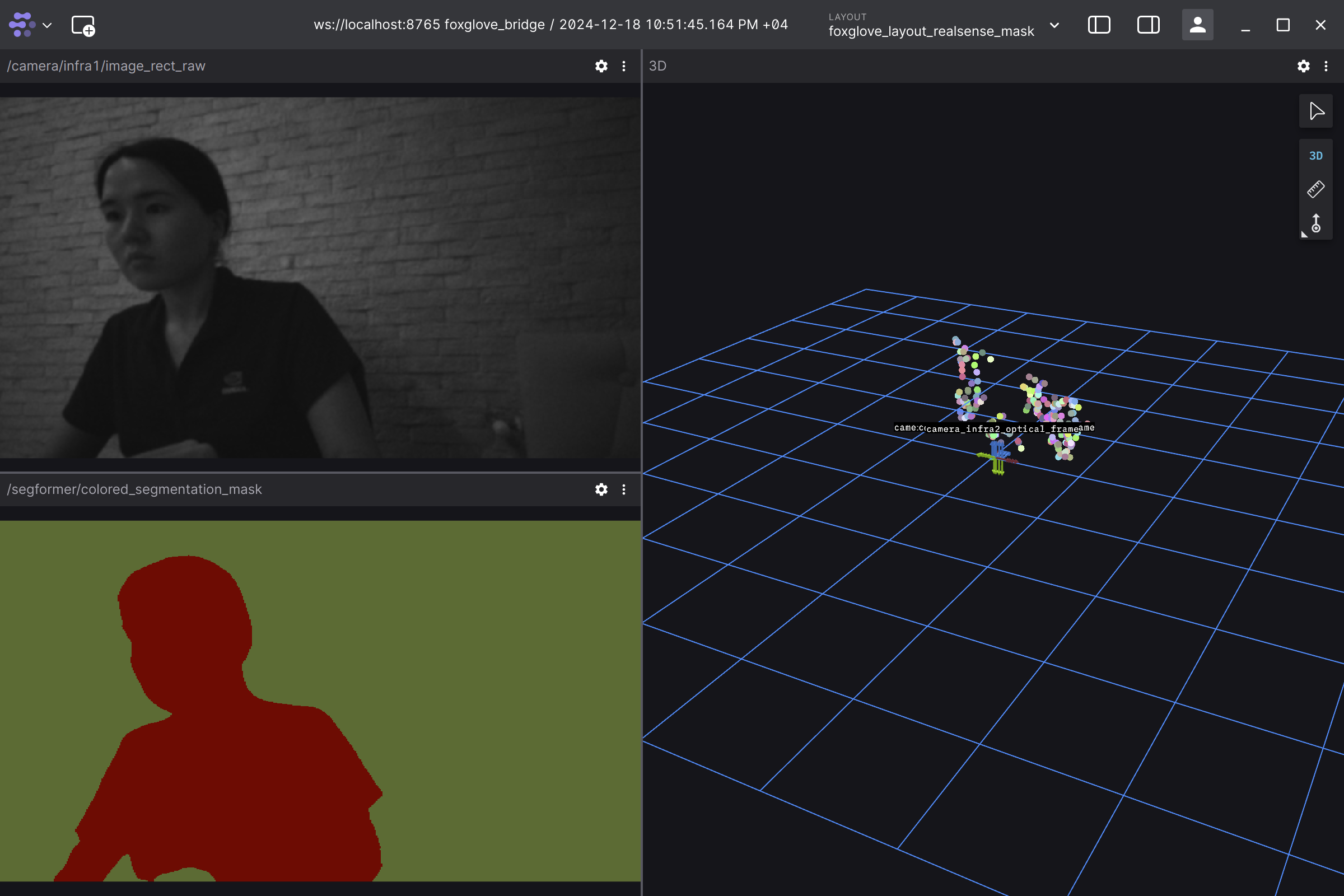
foxglove_layout_realsense_mask.jsonlayout file, which can be found in the isaac_ros_visual_slam repository.Validate that you can see a visualization of the images of the front left stereo camera and Segformer mask, image landmarks, camera transform tree and odometry path. You should expect a visualization similar to the following:
Visualization with RViz2#
[Terminal 3] Open another terminal and activate the Isaac ROS environment to execute RViz2:
isaac-ros activate
[Terminal 3] Install RViz:
sudo apt-get install -y ros-jazzy-rviz2
source /opt/ros/jazzy/setup.bash
[Terminal 3] Open RViz2 from the new terminal:
source ${ISAAC_ROS_WS}/install/setup.bash
rviz2 -d $(ros2 pkg prefix isaac_ros_visual_slam --share)/rviz/vslam_segformer.rviz
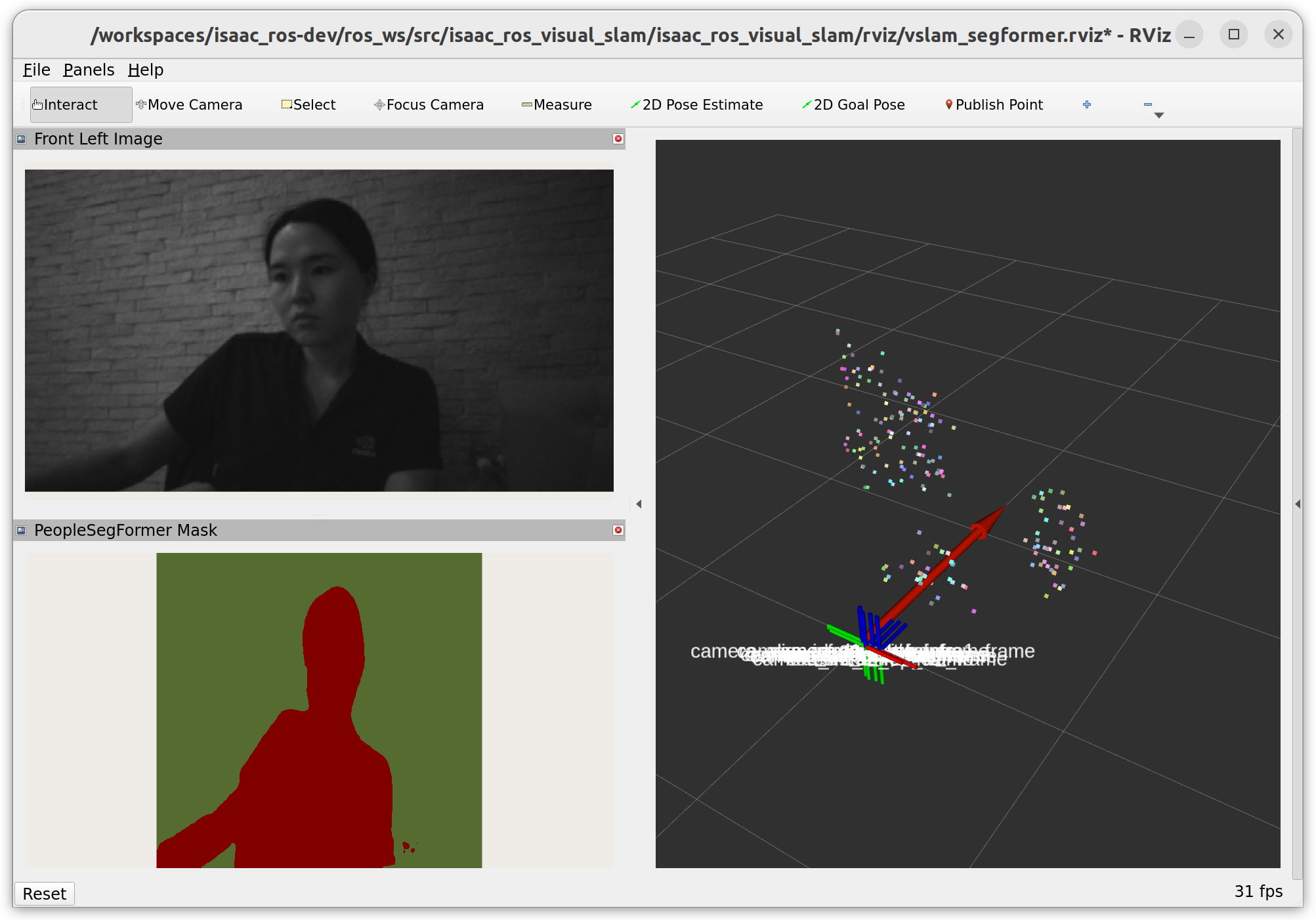
Validate that you can see a visualization of the images of the front left stereo camera and Segformer mask, image landmarks, camera transform tree and odometry path. You should expect a visualization similar to the following: