
isaac_ros_sipl_camera#
Source code available on GitHub.
Quickstart#
Set Up Development Environment#
Set up your development environment by following the instructions in getting started.
(Optional) Install dependencies for any sensors you want to use by following the sensor-specific guides.
Note
We strongly recommend installing all sensor dependencies before starting any quickstarts. Some sensor dependencies require restarting the development environment during installation, which will interrupt the quickstart process.
The SIPL headers are expected to be installed on the host with NVIDIA SDK Manager when flashing the JetPack BSP. When installing with SDK Manager, select all available optional packages. For installation instructions, see the JetPack Installation Guide.
If JetPack 7.2 was installed using an ISO image or with OTA updates, you can also install the SIPL and Multimedia APIs as follows:
wget https://developer.nvidia.com/downloads/embedded/L4T/r39_Release_v2.0/release/Jetson_SIPL_API_R39.2.0_aarch64.tbz2
wget https://developer.nvidia.com/downloads/embedded/L4T/r39_Release_v2.0/release/Jetson_Multimedia_API_R39.2.0_aarch64.tbz2
sudo tar xjf Jetson_SIPL_API_R39.2.0_aarch64.tbz2 -C /
sudo tar xjf Jetson_Multimedia_API_R39.2.0_aarch64.tbz2 -C /
JetPack 7.2 requires the isaac_ros_sipl_camera package from Isaac ROS 4.6 or later.
These package versions are not backward compatible with JetPack 7.1 or earlier.
For JetPack 7.1, use the package from Isaac ROS 4.3 through 4.5.
Supported Cameras#
As of the JetPack 7.2 release, this package supports the following SIPL cameras:
Camera |
Transport |
Host Setup |
|---|---|---|
Camera-over-Ethernet (CoE) |
||
GMSL2 |
Build isaac_ros_sipl_camera#
Activate the Isaac ROS environment:
isaac-ros activateInstall the prebuilt Debian package:
sudo apt-get update
sudo apt-get install -y ros-jazzy-isaac-ros-sipl-camera
Install Git LFS:
sudo apt-get install -y git-lfs && git lfs install
Clone this repository under
${ISAAC_ROS_WS}/src:cd ${ISAAC_ROS_WS}/src && \ git clone -b release-4.6 https://github.com/NVIDIA-ISAAC-ROS/isaac_ros_sipl_camera.git isaac_ros_sipl_camera
Activate the Isaac ROS environment:
isaac-ros activateUse
rosdepto install the package’s dependencies:sudo apt-get update
rosdep update && rosdep install --from-paths ${ISAAC_ROS_WS}/src/isaac_ros_sipl_camera/isaac_ros_sipl_camera --ignore-src -y
(Optional) Replace the mock calibration files if you have the camera’s calibration data. See section on Camera Calibration Overrides for more details. The configuration uses mock calibration files by default.
Build the package from source:
cd ${ISAAC_ROS_WS} && \
   colcon build --symlink-install --packages-up-to isaac_ros_sipl_camera --base-paths ${ISAAC_ROS_WS}/src/isaac_ros_sipl_camera/isaac_ros_sipl_camera
Source the ROS workspace:
Note
Make sure to repeat this step in every terminal created inside the Isaac ROS environment.
Because this package was built from source, the enclosing workspace must be sourced for ROS to be able to find the package’s contents.
source install/setup.bash
Run Launch File#
Launch the monocular camera node with default native NV12 output:
ros2 launch isaac_ros_sipl_camera sipl_camera.launch.py
Launch the Eagle stereo camera with default native NV12 output:
The default parameter file targets the Eagle VB1940 camera with
eagle_stereo.yamlso no argument is needed.Note
The SIPL
VB1940_Stereoplatform configuration enables hardware stereo pairing, but a known bug with SIPL release distributed with JetPack 7.2.0 corrupts the right edge of the image. To avoid this issue,eagle_stereo.yamlsetsplatform_configtoVB1940and runs the sensors as independent pipelines. This issue is fixed in JetPack 7.2.1.ros2 launch isaac_ros_sipl_camera sipl_stereo_camera.launch.py
Launch the Hawk stereo camera with default native NV12 output and stereo frame-pair gating enabled:
The
hawk_stereo.yamlparameter file defaults to0x0001, which assumes the Hawk is connected to channel 0. See GMSL Parameters for more details.ros2 launch isaac_ros_sipl_camera sipl_stereo_camera.launch.py \ param_file:=$(ros2 pkg prefix isaac_ros_sipl_camera)/share/isaac_ros_sipl_camera/config/hawk_stereo.yaml \ enforce_stereo_pairs:=true
Launch the stereo camera with RGB8 format conversion and image rectification:
ros2 launch isaac_ros_sipl_camera sipl_stereo_camera.launch.py \
    encoding_desired:=rgb8 enable_rectify:=true
Visualize Results#
Open a new terminal and activate the Isaac ROS environment:
isaac-ros activateVerify that the camera topics are publishing:
ros2 topic list
ros2 topic hz /left/camera_info
Example output for Hawk stereo with rectification enabled (
enable_rectify:=true):/left/camera_info /left/camera_info_unsynced /left/camera_info_rect /left/image_converted /left/image_raw /left/image_raw_unsynced /left/image_rect /right/camera_info /right/camera_info_unsynced /right/camera_info_rect /right/image_converted /right/image_raw /right/image_raw_unsynced /right/image_rect /tf_static average rate: 28.127 min: 0.000s max: 0.334s std dev: 0.05718s window: 30 ...
Visualize the stereo camera streams with your preferred tool:
sudo apt-get install -y ros-jazzy-rqt-image-view
source /opt/ros/jazzy/setup.bash
ros2 run rqt_image_view rqt_image_view /left/image_raw
sudo apt-get install -y ros-jazzy-foxglove-bridge
source /opt/ros/jazzy/setup.bash
ros2 run foxglove_bridge foxglove_bridge --ros-args \
  -p port:=9090 \
  -p send_buffer_limit:=30000000 \
  -p max_qos_depth:=5 \
  -p use_compression:=false
This configuration is recommended for high-rate camera streams:
max_qos_depthbounds per-topic queue growth, andsend_buffer_limithelps avoid dropped messages under burst load.Open Foxglove Studio, connect to your ROS 2 bridge, and add Image panels for
/left/image_rawand/right/image_raw.sudo apt-get install -y ros-jazzy-rviz2 source /opt/ros/jazzy/setup.bash rviz2
In RViz2, add Image displays and set the topics to
/left/image_rawand/right/image_raw.
Data Flow#
The optional nodes shown below are added by the example launch files based on launch arguments. See Launch Files for details.
SiplStereoCameraNode"] SiplCameraNode -->|"NITROS, aligned stereo timestamps"| SyncOrDrop["NitrosCameraDropNode
(stereo pair gating, optional)"] SiplCameraNode -.->|"NITROS (gating disabled)"| Raw(["image_raw / camera_info"]) SyncOrDrop -->|"NITROS, complete pairs only"| Raw Raw -->|"NITROS (CUDA buffer)"| Converter["ImageFormatConverterNode
(optional)"] Raw -->|"NITROS (CUDA buffer)"| Encoder["H.264 EncoderNode
(optional, image_compressed)"] Converter -->|"NITROS (CUDA buffer)"| Rectify["RectifyNode
(optional)"] Converter -->|"NITROS (CUDA buffer)"| Downstream["Downstream Nodes
(SLAM, ESS, etc.)"] Rectify -->|"NITROS (CUDA buffer)"| Downstream
Message Timestamps#
By default, use_hw_timestamp is set to true and each image and its matching CameraInfo
message are stamped with the capture start-of-frame (SOF) timestamp that SIPL APIs provides in the
Tegra timestamp counter (TSC) time domain.
The node uses a periodically calibrated offset to convert the timestamp from the TSC time domain to the time domain of the node’s ROS clock.
SOF and EOF in this context denote transport frame boundaries, not sensor exposure boundaries. SOF occurs after exposure has started, but its exact relationship to exposure timing depends on the sensor, shutter mode, and transport. This SOF timestamp marks when the leading part of one transmitted image reaches the Jetson capture path before the image payload and ISP processing.
For GMSL2, the Video Input (VI)/NVCSI path records SOF as the image begins arriving from the deserializer.
For CoE, the MGBE/RCE path records SOF as the first Ethernet packet marked as frame start arrives.
If use_hw_timestamp is false, the node instead stamps with the current ROS clock time after
receiving the full frame after ISP processing.
For the transport paths, refer to the NVIDIA GMSL architecture overview and Camera-over-Ethernet overview.
Package Architecture#
Nodes#
SiplCameraNode#
Base node for monocular cameras. See ROS Topics Published and ROS Parameters for the full interface specification.
SiplStereoCameraNode#
Stereo camera node that extends SiplCameraNode. See ROS Topics Published and
ROS Parameters for the full interface specification.
When running launch files, additional topics may be published depending on the launch arguments. See the launch files section below for more details.
Launch Files#
The sipl_camera.launch.py and sipl_stereo_camera.launch.py launch files
conditionally add format conversion, rectification, H.264 encoding, and (for stereo)
frame-pair gating nodes based on launch arguments. The format conversion and
rectification nodes are from the isaac_ros_image_proc package, and the encoder node is from the isaac_ros_h264_encoder package.
When encoding_desired is set to a non-native format (anything other than
nv12 or nv24), the launch file adds an ImageFormatConverterNode to
convert the output.
When enable_rectify is set to true, the launch file adds a
RectifyNode and automatically forces encoding_desired to rgb8 if a
native format (nv12/nv24) was specified, because RectifyNode
requires a standard image encoding.
When enable_encoding is set to true, the launch file adds an
EncoderNode that H.264-encodes the camera output and publishes it on
image_compressed (per eye for stereo). The encoder consumes the same
image_raw output as the other downstream nodes.
Color Conversion Limitation#
When the launch files convert native nv12 output to a packed RGB or BGR
format, ImageFormatConverterNode uses yuv_color_spec=bt709. SIPL ISP
buffers are allocated with NvSciColorStd_REC709_ER, which is a full-range
BT.709 color standard. CV-CUDA AdvCvtColor supports the BT.709 color matrix,
but does not currently support the full-range REC709_ER variant. As a
result, converted images can have slightly different luma contrast than a true
full-range conversion. Native nv12 and nv24 output is unaffected.
If exact full-range color reproduction is required, subscribe to the native
camera output and convert it with a pipeline that supports REC709_ER.
sipl_camera.launch.py#
Launch Argument |
Default |
Description |
|---|---|---|
|
|
Path to the YAML parameter file |
|
|
Output encoding: |
|
|
Component container name |
|
|
ROS namespace for the camera node and its topics. Set a distinct value per camera (along with a distinct |
|
|
Enable image rectification through |
|
|
Enable H.264 accelerated encoding to |
Pipeline variants:
Native output (default):
SiplCameraNodeFormat conversion:
SiplCameraNode→ImageFormatConverterNodeRectification:
SiplCameraNode→ImageFormatConverterNode→RectifyNodeEncoding:
SiplCameraNode→EncoderNode(publishesimage_compressed)
sipl_stereo_camera.launch.py#
Launch Argument |
Default |
Description |
|---|---|---|
|
|
Path to the YAML parameter file |
|
|
Output encoding: |
|
|
Component container name |
|
|
ROS namespace for the camera node and its topics. Set a distinct value per camera (along with a distinct |
|
|
Enable image rectification through |
|
|
Align left/right capture timestamps and gate stereo frame pairs (drop the pair if one of left/right never arrives). Enables the camera node’s |
|
|
Enable H.264 accelerated encoding of the left and right images to |
Pipeline variants:
Native output (default):
SiplStereoCameraNodeFormat conversion:
SiplStereoCameraNode→ImageFormatConverterNode(left and right)Rectification:
SiplStereoCameraNode→ImageFormatConverterNode(left and right) →RectifyNode(left and right)Encoding:
SiplStereoCameraNode→EncoderNode(left and right, publishesimage_compressed)
Stereo frame-pair gating with enforce_stereo_pairs enabled:
When enforce_stereo_pairs is enabled, the launch inserts a NitrosCameraDropNode (stereo mode)
that exact-time-synchronizes the aligned left/right image_raw and camera_info set and
republishes only complete pairs. If one of the pair’s frames is missing, both are dropped, so only
matched pairs are published. The camera’s raw output is moved to *_unsynced topics, and the
synced pair keeps the canonical left/image_raw, right/image_raw, left/camera_info, and
right/camera_info topic names.
TF Frame Tree#
The default frame names produce the following tree structures.
Verifying Stereo Camera Calibration#
Given the camera’s calibration data, you may use the epipolar test isaac_ros_rectify_stereo_epipolar_test.py in isaac_ros_image_proc package to validate that your stereo camera calibration produces accurately rectified images based on epipolar line tests.
Several files are required to run the test and should be placed in the rectify_stereo test cases directory of the isaac_ros_image_proc package.
${ISAAC_ROS_WS}/src/isaac_ros_image_pipeline/isaac_ros_image_proc/test/test_cases/rectify_stereo/
Refer to the quickstart section for the isaac_ros_image_proc package on how to clone and build the package.
Capture one left/right raw image pair of PNG files that contains a visible checkerboard pattern. For example, image_raw_right.png
Create test configuration JSON files for the left and right camera respectively:
image_raw_left.jsonandimage_raw_right.json. These files should reference the PNG files and include the checkerboard inner-corner grid size (rows x columns). For example, image_raw_right.jsonNote
The checkerboard size must use inner-corner counts (for example, a 10x7 square grid uses a 9x6 inner-corner size).
Create camera info JSON files for left and right camera respectively:
camera_info_left.jsonandcamera_info_right.json. For example, camera_info_right.jsonPlace all the PNG and JSON files in the
rectify_stereotest cases directory of theisaac_ros_image_procpackage:# From the workspace root mkdir ${ISAAC_ROS_WS}/src/isaac_ros_image_pipeline/isaac_ros_image_proc/test/test_cases/rectify_stereo/sipl_stereo_camera cp <your_files> ${ISAAC_ROS_WS}/src/isaac_ros_image_pipeline/isaac_ros_image_proc/test/test_cases/rectify_stereo/sipl_stereo_camera
Build the
isaac_ros_image_procpackage after placing all the files:colcon build --packages-up-to isaac_ros_image_proc source install/setup.bash
Run the test:
colcon test --packages-select isaac_ros_image_proc \
    --event-handlers console_direct+ \
    --ctest-args -R isaac_ros_rectify_stereo_epipolar_test
Verify the test results. Passing the test indicates that the calibration accuracy is satisfactory. If the test fails, downstream packages that consume the rectified images may still function, but with degraded performance depending on your application’s requirements.
Note
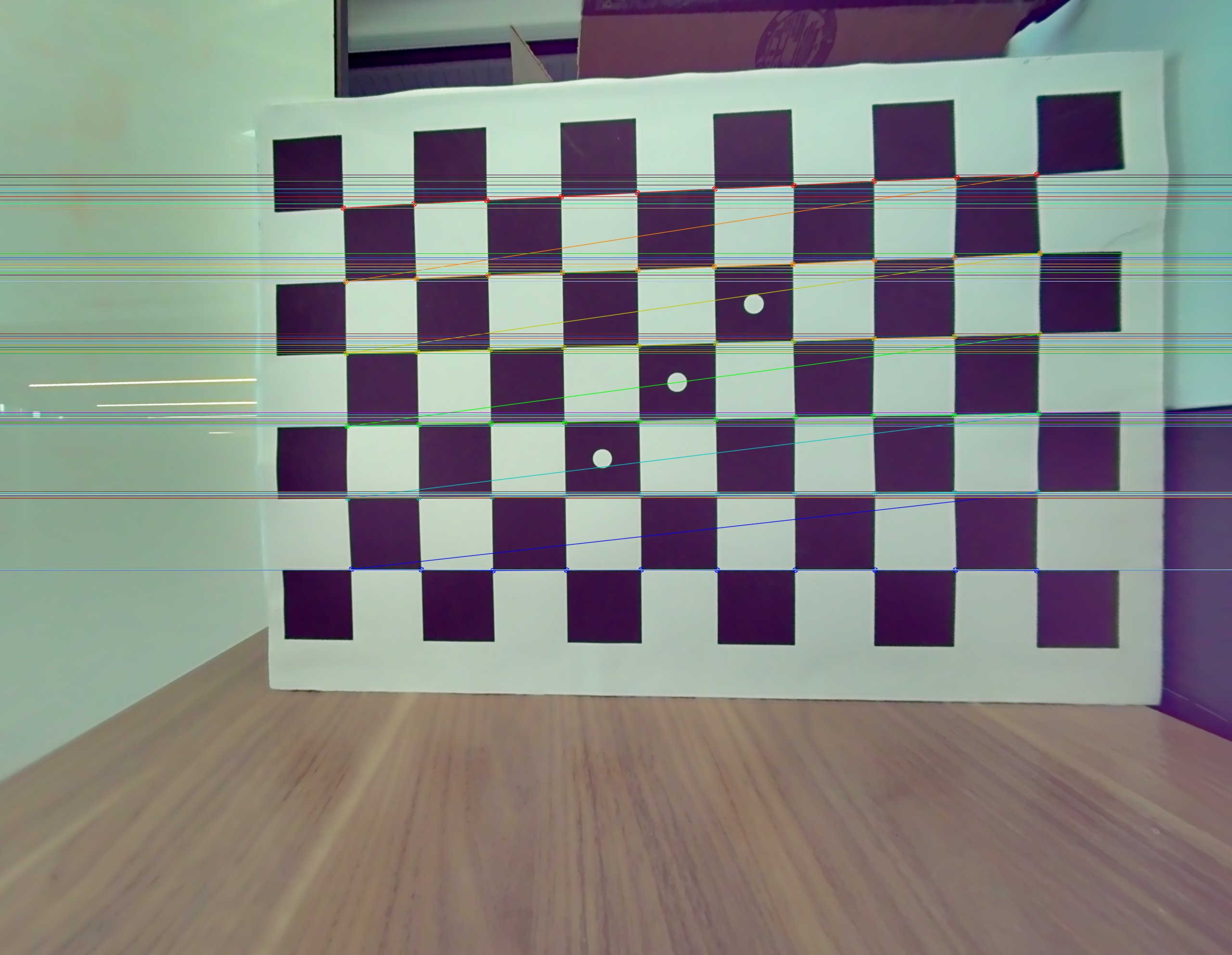
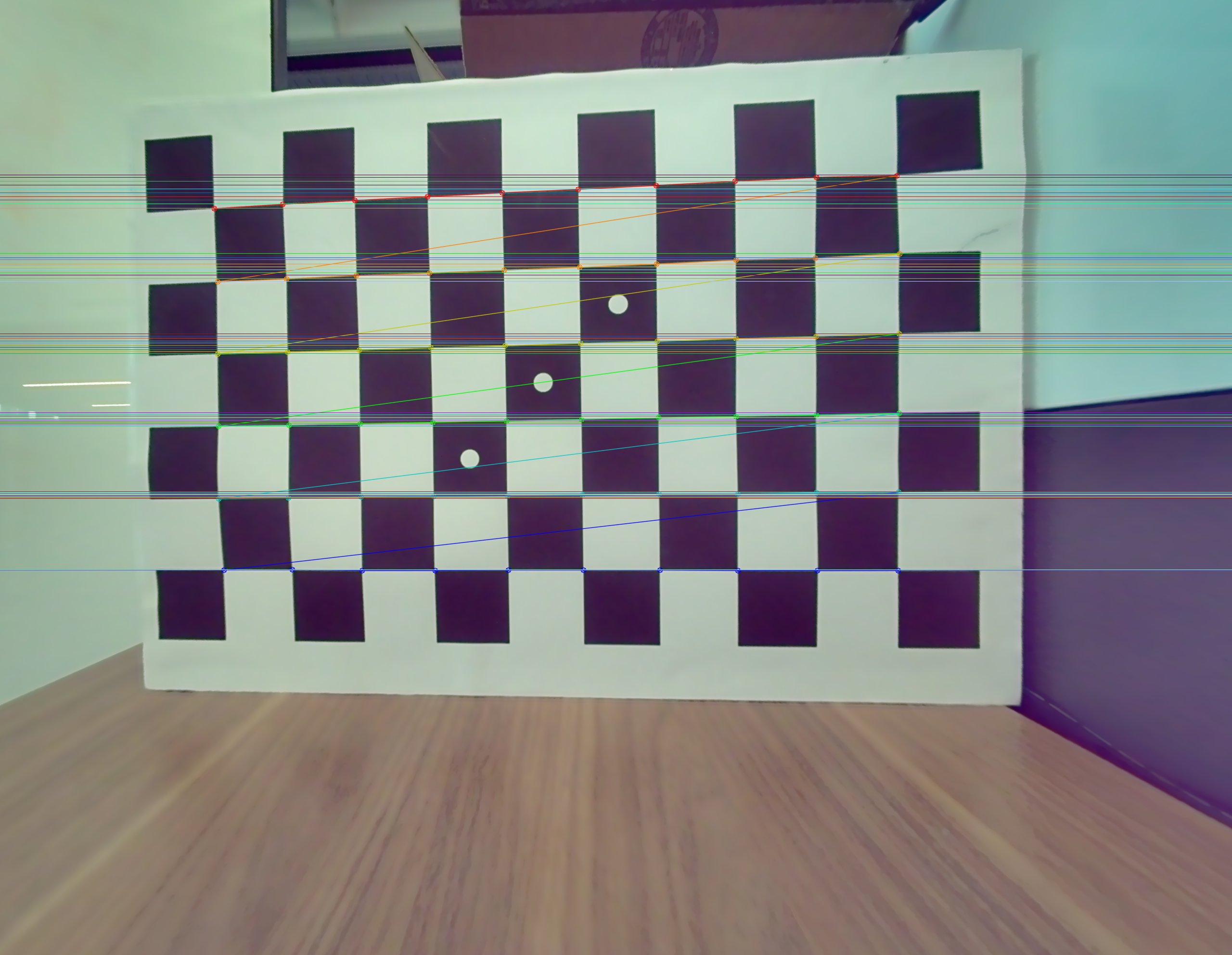
A well-rectified pair has horizontal epipolar lines with sub-pixel mean error (less than 0.5 px) and max error under approximately 1-2 px.
Below are example outputs of the test with the epipolar lines drawn.
API#
Usage#
ros2 launch isaac_ros_sipl_camera sipl_camera.launch.py param_file:=<path_to_yaml> encoding_desired:=<encoding>
ros2 launch isaac_ros_sipl_camera sipl_stereo_camera.launch.py param_file:=<path_to_yaml> encoding_desired:=<encoding> enable_rectify:=<true|false>
ROS Topics Published#
SiplCameraNode#
ROS Topic |
Interface |
Description |
|---|---|---|
|
Raw camera image in |
|
|
Camera intrinsic calibration data. |
|
|
Static transform from camera link to optical frame. |
SiplStereoCameraNode#
ROS Topic |
Interface |
Description |
|---|---|---|
|
Left camera raw image in |
|
|
Right camera raw image in |
|
|
Left camera intrinsic calibration data. |
|
|
Right camera intrinsic calibration data. |
|
|
Static transforms from stereo rig base to left/right optical frames. |
ROS Parameters#
Common Parameters#
ROS Parameter |
Type |
Default |
Description |
|---|---|---|---|
|
|
|
SIPL platform configuration name |
|
|
|
Holoscan Sensor Bridge (HSB) name |
|
|
|
Holoscan Sensor Bridge ID |
|
|
|
Network interface for the CoE camera |
|
|
|
Camera IP override (empty uses the platform default) |
|
|
|
Camera MAC override (empty uses the platform default) |
|
|
|
Native ISP output encoding: |
|
|
|
Use the capture SOF TSC timestamp converted to ROS time. See Message
Timestamps. When |
|
|
|
Seconds expected to have received each sensor’s first frame after capture starts before timing out and terminating. Set to |
|
|
|
Path to camera calibration file (left camera in stereo mode) |
Monocular Parameters#
ROS Parameter |
Type |
Default |
Description |
|---|---|---|---|
|
|
|
Camera link frame name |
Stereo Parameters#
ROS Parameter |
Type |
Default |
Description |
|---|---|---|---|
|
|
|
Stereo rig base frame |
|
|
|
Left camera frame |
|
|
|
Right camera frame |
|
|
|
Path to right camera calibration file |
|
|
|
When |
|
|
|
In-sync window (microseconds) for |
|
|
|
Expected capture frame rate, used only to bound the out-of-sync detection window for |
GMSL Parameters#
These parameters apply when the platform configuration uses a GMSL transport (for example, the Hawk stereo camera).
ROS Parameter |
Type |
Default |
Description |
|---|---|---|---|
|
|
|
Each connected camera occupies one link: |
Note
Only one GMSL camera can stream at a time. link_mask must select
exactly one link, and only one SIPL camera node can run on the system at
once — a second concurrent node fails during SIPL platform configuration
(SetPlatformCfg). Enabling multiple links in a single node is also not
supported. Switch cameras by changing link_mask and relaunching.
Camera Calibration Overrides#
Provide calibration files using package:// or file:// URLs. Example
calibration files are available in the package config/ directory for quick
testing.
The following example shows how to set the calibration file in a YAML parameter file:
sipl_camera:
  ros__parameters:
    camera_info_url: "package://isaac_ros_sipl_camera/config/mock_mono_camera_info.yaml"
Prerequisites#
Environment#
When you use isaac-ros activate, the environment for SIPL development will be prepared automatically.
If you need to build on the host directly, you may need to also install the SIPL headers /usr/src/jetson_sipl_api. For installation instructions, see the
SIPL Application Development Guide.
The following paths and libraries are necessary for building and running SIPL.
Path |
Contents |
Needed For |
|---|---|---|
|
Core SIPL runtime libraries ( |
Runtime libraries for SIPL |
|
SIPL development headers |
Compilation |
|
Camera sensor driver plugins |
Runtime (camera detection) |
|
UDDF driver libraries |
Runtime |
|
NITO platform configuration files ( |
Runtime (camera ISP initialization) |
|
CoE device nodes |
Runtime (camera device files) |
Library |
Description |
Location (Jetson Thor) |
|---|---|---|
|
SIPL camera API |
|
|
SIPL query API |
|
|
SIPL pipeline API |
|
|
NvSci buffer |
|
|
NvSci sync |
|
|
NvSci common |
|
Troubleshooting#
Isaac ROS Troubleshooting#
For solutions to problems with Isaac ROS, see troubleshooting.
SIPL CoE Camera Not Found#
For any issues with CoE camera detection, see the Eagle CoE Stereo Camera Setup guide.
SIPL GMSL Camera Produces No Frames#
Symptom#
The SIPL camera node initializes (SIPL Camera initialized) but no frames arrive, and after
first_frame_timeout_s (default 5 s) the node fails with:
[FATAL] [sipl_stereo_camera]: [left] No frames from sensor 0 within 5.0s. Verify the camera connection.
Solution#
The Jetson might not be booted with the correct camera device tree. Re-run the readiness checks in
the Hawk GMSL Stereo Camera Setup guide and confirm
that v4l2-ctl --list-devices reports ar0234. Also confirm that the GMSL distribution board
has 12 V power and that the camera is on the channel corresponding to the link_mask parameter.
HSB fails to initialize with error “Address already in use”#
Symptom#
Unable to bind to initialize HSB and configure the HSB transport driver. You see the following error message:
[HSB] Error configuring driver: bind failed with errno=98: "Address already in use"
Solution#
Another Holoscan instance may still be running. Check and stop it:
ps aux | grep hololink
If there is output, kill the process if it is safe to do so:
kill -9 <pid>
SIPL Headers or Libraries Not Found#
Symptom#
You see the following error message when building the package:
CMake Error: SIPL headers not found at: /usr/src/jetson_sipl_api/sipl/include
Solution#
Install the SIPL libraries through NVIDIA SDK Manager.
Verify that the SIPL libraries and headers are present:
ls /usr/lib/aarch64-linux-gnu/nvidia/libnvsipl*
ls /usr/src/jetson_sipl_api/sipl/include/
Invalid MAC or IP Address Format#
Symptom#
Invalid MAC address format, expected XX:XX:XX:XX:XX:XX
Invalid IP address format, expected XXX.XXX.XXX.XXX
Solution#
Make sure to retrieve the CoE camera’s specific MAC and IP addresses. Refer to the Eagle CoE Stereo Camera Setup guide for instructions.
Use colon-separated hex format for MAC addresses:
8c:1f:64:6d:70:03Use dotted decimal format for IP addresses:
192.168.1.2Verify that the addresses match the camera documentation or EEPROM data.
HSB ID Mismatch#
Symptom#
No matching transport found for override: hsb_id=X
No matching camera found for override: hsb_id=X
Solution#
Verify that the
hsb_idparameter matches the platform configuration.Check the HSB ID in the camera system config.
For VB1940, the default HSB ID is typically
0.Verify that the HSB ID matches across transport and camera configuration.